
Citrix Receiver 11.0 for Windows CE

Citrix have released a new version of Reciever for Windows CE 6.x (typical this device is for thin clients, handheld device)

Key Features

  •  Support for WinCE 6.x Operating System
  •  Support for Multi Monitor functionality
  •  Support for Branch Repeater ICA Universal Cache handles
  •  Capability for a user whose password has expired to change the password.

Download here
Citrix Offline Plug-in 6.0.1

I noticed that Joseph Nord have updated the Citrix Offline Plug-in to version 6.0.1

45 issues are fixed in the new release, I highly recommend that you download and apply the Citrix Offline Plug-in 6.0.1 in your Citrix infrastructure.

Known Issue(s) in This Release

  • After uninstalling of the Version 6.0.1 of the plug-in from a XenApp server, you must run Repair on XenApp from the Add/Remove Programs control panel. Failure to do so causes the following error message to appear when attempting to launch an application: “This application has failed to start because RADEAPHOOK.dll was not found. Re-installing the application may fix this problem.” [#235409]
  • Repairing or uninstalling Version 6.0.1 of the plug-in causes mfaphook64.dll to be added to %program files (x86)%\citrix\system32\ or %program files%\citrix\system32\. [#235376]
  • Version 6.0.1 of the plug-in does not work with User Profile Manager 3.1.0.86. The use the plug-in with User Profile Manager, install Profile Manager Hotfix 3.1.1.
  • In Version 5.2.x and earlier of the plug-in, users are granted READ+EXECUTE access to the GUID_V directory during application launch, and that access is removed when the application is terminated. Users who are not presently executing a published application cannot navigate to the application folder they are not presently running, even if that application is present on the server and being used by other users. In Version 6.0 and later of the plug-in, due to service isolation, this functionality is replaced by providing READ+EXECUTE access to “Everyone” at the Rade cache directory level.

download it here http://support.citrix.com/article/CTX125480

How To configure Access Gateway Enterprise for Citrix Reciever for Iphone, Ipad

1. Configure the XenApp Services site

If you do not already have a XenApp Services site created, in the XenApp console or Web Interface console (depending on the version of XenApp you have installed), create a XenApp Services site for mobile devices.

The Receiver for mobile devices uses a XenApp Services site (formally Program Neighborhood Agent site) to get information about the applications a user has rights to and presents them to the Receiver running on the device. This is similar to the way you use the Web Interface for traditional SSL-based XenApp connections for which an Access Gateway can be configured. XenAppServices sites running on the Web Interface 5. x have this configuration ability built in.

Configure the XenApp Services site for the Receiver for mobile devices to support connections from an Access Gateway connection.

  1. In the XenApp Services site, select Manage secure client access > Edit secure client access settings.
  2. Change the Access Method to Gateway Direct.
  3. Enter the FQDN of the Access Gateway appliance.
  4. Enter the Secure Ticket Authority (STA) information.

2. Configure the Access Gateway appliance

  1. Configure authentication policies to authenticate users connecting to the Access Gateway using the Access Gateway Plug-in. Bind each authentication policy to a virtual server.Active Directory authentication, TACACS authentication, SMS authentication (http://smspasscode.com) (iPhone only), and RSA SecurID are the three supported authentication methods for v1.x of the Receiver for mobile devices:
    • If double source authentication is required (such as RSA SecurID and Active Directory), RSA SecurID authentication must be the primary authentication type. Active Directory authentication must be the secondary authentication type.
    • RSA SecurID uses a RADIUS server to enable token authentication.
    • Active Directory authentication can use either LDAP or RADIUS.
      Note: For servers prior to Windows Server 2003, Active Directory can use Integrated Windows authentication, also known as NTLM.

    Test a connection from a user device to verify that the Access Gateway is configured correctly in terms of networking and certificate allocation.

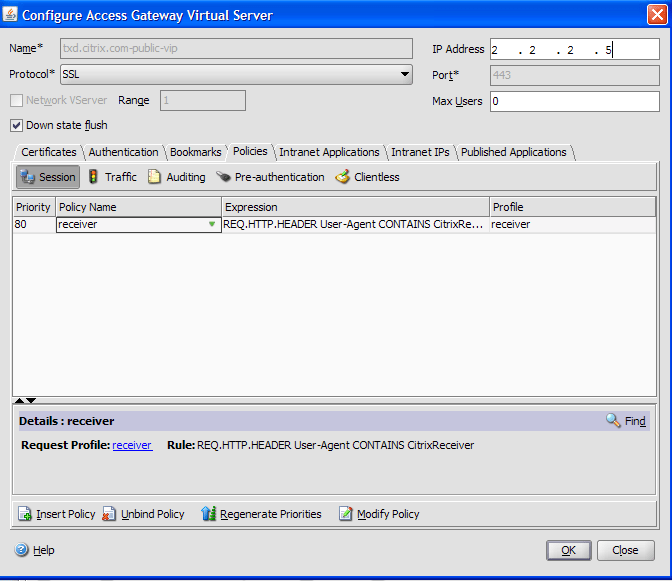
  2. Create a session policy on the Access Gateway to allow incoming XenApp connections from the Receiver, and specify the location of your newly created XenApp Services site.
    • Create a new session policy to identify that the connection is from the Receiver for mobile devices. As you create the session policy, configure the following expression and select Match All Expressions as the operator for the expression:REQ.HTTP.HEADER User-Agent CONTAINS CitrixReceiver
    • In the associated profile configuration for the session policy, on the Security tab, set Default Authorization to Allow.On the Published Applications tab, if this is not a global setting (you checked the Override Global check box), ensure the ICA Proxy field is ON.In the Web Interface Address field, enter the URL including the config.xml for the XenApp Services site that the device users use, such as http://XenAppServerName/Citrix/PNAgent/config.xml or http://XenAppServerName/CustomPath/config.xml.
    • Bind the session policy to a virtual server.
    • Create authentication policies for RADIUS and Active Directory.
    • Bind the authentication policies to the virtual server.
    Important: If the server certificate used on the Access Gateway is part of a certificate chain (with an intermediate certificate), make sure that the intermediate certificates are also installed correctly on the Access Gateway. For information about installing certificates, see the Access Gateway documentation.

3. Configure the mobile device for the Receiver application

  1. In Account Settings, in the Address field, enter the matching FQDN of your Access Gateway server, such as FQDNofAccessGateway.
  2. In the Citrix Access Gateway settings, turn on Access Gateway, set the Gateway Type to Enterprise edition, and select the authentication method.

Receiver for Windows 2.0 Packager

Enables Receiver for Windows and the secure access plug-in to be installed from an external download page.

Users can install Citrix Receiver remotely using Citrix Secure Access (Standard or Enterprise Edition) plug-in. If your company uses a different product to provide access to remote users, this solution does not apply.

For your users to install Receiver for Windows remotely, you need to:

  • Create an external download file by wrapping the Citrix Secure Access (Standard or Enterprise Edition) plug-in and the Citrix Receiver application into a single file using the Citrix Receiver Packager utility, and move the output file to your external web server.
  • Create your download web page from the supplied template, link it to the output file created by the Receiver Packager utility, and deploy the external web page on your web server

download here