Citrix XenDesktop 7.7 and Citrix XenApp 7.7

xd77

Citrix have released a new version of Citrix XenDesktop 7.7 and XenApp 7.7

My first impressions of this release is, this is the release you should update to if you are running Citrix XenDesktop 7.x, the speed improvements in the GUI is incredible, its snappy realiable and makes you work without waiting it for loading when you click around the catalogs and the delivery groups. The 7.7 release is an important release from Citrix where Citrix is now fully supporting Microsoft Azure, so you can provisioning VDI or XenApp machines on Microsoft Azure with MCS technology. Another long waited feature is “Zones” this feature will be loved by customers that have branch offices where there is a requirement to install local Citrix infrastructure components such as Studio, Director, Site database, Zones was very common used in IMA architecture and now its finally implemented in FMA, great job Citrix. These are just some of the all the new huge improvements and this is the best release of XenApp/XenDesktop. Other new product release that is included in the XenDesktop/XenApp 7.7 media is HDX RealTime Optimization Pack 2.0, License Server 11.13.1, Profile Management 5.4, Citrix Provisioning 7.7, Citrix Receiver 4.4 is not in the iso, but you have to download this seperated, which i highly recommends.

What a great year to finish with and happy updating and I wish you all a Happy New Year.

Citrix XenDesktop 7.7 & Citrix XenDesktop 7.7 contains following software updates and new features and enhancements, this blog post covers all whats new in the architecture and components. Citrix Provisioning 7.7 is covered in a seperated article here.

Whats new in release 7.7 FMA

This product release includes the following new and enhanced features.

  • Zones

citrix xa xd 7.7

Deployments that span widely-dispersed locations connected by a WAN can face challenges due to network latency and reliability. Configuring zones can help users in remote regions connect to local resources without forcing connections to traverse large segments of the WAN. Using zones allows effective Site management from a single Citrix Studio console, Citrix Director, and the Site database. This saves the costs of deploying, staffing, licensing, and maintaining additional Sites containing separate databases in remote locations.

Zones can be helpful in deployments of all sizes. You can use zones to keep applications and desktops closer to end users, which improves performance.

For more information, see the Zones article.

  • Improved database flow and configuration

When you configure the databases during Site creation, you can now specify separate locations for the Site, Logging, and Monitoring databases. Later, you can specify different locations for all three databases. In previous releases, all three databases were created at the same address, and you could not specify a different address for the Site database later.

You can now add more Delivery Controllers when you create a Site, as well as later. In previous releases, you could add more Controllers only after you created the Site.

For more information, see the Databases and Controllers articles.

  • Application limits

Configure application limits to help manage application use. For example, you can use application limits to manage the number of users accessing an application simultaneously. Similarly, application limits can be used to manage the number of simultaneous instances of resource-intensive applications, this can help maintain server performance and prevent deterioration in service.

For more information, see the Manage applications article.

  • Multiple notifications before machine updates or scheduled restarts

You can now choose to repeat a notification message that is sent to affected machines before the following types of actions begin:

Updating machines in a Machine Catalog using a new master image

Restarting machines in a Delivery Group according to a configured schedule

If you indicate that the first message should be sent to each affected machine 15 minutes before the update or restart begins, you can also specify that the message be repeated every five minutes until the update/restart begins.

For more information, see the Manage Machine Catalogs and Manage machines in Delivery Groups articles.

  • API support for managing session roaming

By default, sessions roam between client devices with the user. When the user launches a session and then moves to another device, the same session is used and applications are available on both devices. The applications follow, regardless of the device or whether current sessions exist. Similarly, printers and other resources assigned to the application follow.

You can now use the PowerShell SDK to tailor session roaming. This was an experimental feature in the previous release.

For more information, see the Sessions article.

  • API support for provisioning VMs from hypervisor templates

When using the PowerShell SDK to create or update a Machine Catalog, you can now select a template from other hypervisor connections. This is in addition to the currently-available choices of VM images and snapshots.

  • Support for new and additional platforms

See the System requirements article for full support information. Information about support for third-party product versions is updated periodically.

By default, SQL Server 2012 Express SP2 is installed when you install the Delivery Controller. SP1 is no longer installed.

The component installers now automatically deploy 32-bit and 64-bit Microsoft Visual C++ 2012 runtimes, as well as 2008 and 2010 runtimes. Visual C++ 2005 is no longer deployed.

You can install Studio or VDAs for Windows Desktop OS on machines running Windows 10.

You can create connections to Microsoft Azure virtualization resources.

The product ISO no longer includes versions of the Citrix Receiver for Mac and the Citrix Receiver for Linux. You (or your users) can download and install the Citrix Receivers from the Citrix website. Alternatively, you can make those Citrix Receivers available from your StoreFront server (see the Make Citrix Receiver installation files available on the server section in the StoreFront 3.0.x documentation, or the equivalent documentation for the StoreFront version you are using).

Whats new in Citrix Director 7.7

The Citrix Director version provided with this release contains the following new and enhanced features:

  • Proactive monitoring and alerting

You can now configure proactive alerting and notifications when thresholds are reached. This enables quicker responses even when you are not viewing the monitoring console.

For more information, see Alerts and notifications.

  • SCOM integration

Deployments that use Microsoft System Center 2012 – Operations Manager to monitor deployments can now view alerts provided by the Operations Manager on the Dashboard and in other high level views in Citrix Director. For example, if connections to supported hypervisors fail, the administrator can check Citrix Director for Operations Manager alerts. After reviewing alert details in Citrix Director, the administrator can then switch to the Operations Manager console for additional troubleshooting, if needed.

For more information, see SCOM alerts.

  • Windows Authentication

Citrix Director now supports Integrated Windows Authentication. For single sign-on, a user’s Windows credentials are automatically used to access Citrix Director. This support allows users to log on to their machines using any credential provider and supporting hardware, and use that logged-on identity to access Citrix Director.

For  more information, see Use Citrix Director with Integrated Windows Authentication.

  • Desktop and Server OS usage

The Trends view now shows the usage of Desktop OS by Site and by Delivery group, and it shows the usage of Server OS by site, by Delivery group, and by Machine. This gives you a real-time view of your OS usage, enabling you to quickly assess your site’s capacity needs.

For more information, see Monitor historical trends across a Site.

  • Application limits in Citrix Director

Application limits configured in Studio are shown in existing views and counts in Citrix Director. For example, the User Connection Failures on the Dashboard will indicate when a connection attempt fails because it would exceed an application limit.

For more information, see Application limits.

What’s new in HDX RealTime Optimization Pack 2.0

Citrix Licensing Manager – Enables downloading and allocation of license files from the License Server on which the Citrix Licensing Manager is installed. You can specify a date range for the historical usage and export it to a CSV file.  The CSV file provides daily usage information including the number of licenses in overdraft. License Server VPX does not support the Citrix Licensing Manager.

  • Simple License Service is replaced – The Citrix Licensing Manager replaces the Simple License Service web UI.
  • Partial allocation of licenses – When using the Citrix Licensing Manager to download your licenses, you can specify how many licenses to download for a product. Previously, the Simple License Service allowed only a complete download of licenses for a product.
  • Citrix Licensing Customer Experience Improvement Program (CEIP) and Call Home support for License Server VPX  – Voluntary data collection programs in which Citrix products gather anonymous or identified configuration, performance, error, and usage data from your deployment and automatically send the data to Citrix. For more information, see “Citrix Licensing Customer Experience Improvement Program (CEIP) and Call Home” in Technical overview.
  • License Administration Console defaults to Hyper Text Transfer Protocol Secure  – When the License Administration Console installs, it defaults to https

What’s New in Profile Management 5.4

When upgrading Profile management, the installer removes the old version along with the WMI Provider, and then installs the new version. If you perform the upgrade after separating the two components, the WMI Provider is not upgraded. In this case, install it separately to ensure the two components remain compatible with each other and your VDAs.  You must provide the standalone WMI MSI file or installer for Versions 7.5 and 7.6 of the VDA so that the correct version of the WMI Provider installs after upgrading Profile management.

If you upgrade to Profile management 5.4 on a VDA earlier than version 7.7, use profilemgt_x64/x86.msi to do so. If you upgrade on a Version 7.7 VDA, Profile management 5.4 and WMI Provider 5.4 are automatically installed (by profilemgt_x64/x86.msi and UpmVDAPlugin_x64/x86.msi).

Source

Download Citrix XenDesktop 7.7 here (Require MyCitrix ID)

Download Citrix XenApp 7.7 here (Require MyCitrix ID)

Download Citrix Profile Management 5.4 here

Download Citrix HDX Optimization Pack 2.0 here

Download Citrix License Server 11.13.1 here (For Windows or VPX appliance)

Download Citrix Windows Receiver 4.4 here

Citrix Provisioning 7.7 with Support for Windows 10

Citrix Provisioning 7.7 - Poppelgaard - blog about Remote Graphics
Citrix Provisioning 7.7 – Poppelgaard – blog about Remote Graphics

Citrix have released a new version of Citrix Provisioning 7.7 which contains a lot of new improvements including support for Microsoft Windows 10, Yeah!.

The community have also embrased PVS 7.7 and Carl Webster have updated his PVS 7.7 Documentor Script and Sacha Thomet have developed a PVS 7.7 Health Check script that is also GA same day as PVS 7.7

New features in Citrix Provisioning service – PVS 7.7

The folllowing new features are available with Citrix Provisioning Services 7.7:

  • Support for Microsoft Windows 10 Enterprise and Professional editions.
  • In-place upgrade of target device software. Rather than reverse-imaging, you can install a new version of the target device software without having to manually uninstall the previous version. To do an in-place upgrade from version 7.6 to version 7.7 you must first install version 7.6.1.
  • Support for UEFI pre-boot environments. This enables you to stream at startup time using gigabit network speeds, so users experience faster startups, and to use disks over 2 TB.
  • The licensing grace period for Provisioning Services has changed from 96 hours to 30 days, for consistency with XenApp and XenDesktop.
  • The Citrix Provisioning Services API has been enhanced to provide a standard object-oriented PowerShell interface that enables you to integrate your products and tools easily with Citrix Provisioning Services.
  • vGPU-enabled XenDesktop machines can be provisioned using the  Provisioning Services XenDesktop Setup Wizard, rather than manually or by  using the Provisioning Services Streamed Virtual Machine Setup Wizard. You can provision machines on VMware vSphere 6.0 as well as on XenServer 6.2.
  • System Center Virtual Machine Manager Generation 2 VMs can be provisioned through Citrix Provisioning Services. Generation 2 VMs are optimized for modern workloads: the operating system does not carry the overhead of legacy drivers, devices and x86 architectures.

Note: This feature has received limited testing, may not be present in future product releases and must not be enabled on production systems. Citrix may not respond to support requests regarding this feature.

  • FIPS support. Citrix Provisioning Services uses a new algorithm that is compliant with Federal Information Processing Standards (FIPS).
  • XenApp Session Recording is automatically available by default on all machines: you do not need to use a manual workaround.
  • Streaming VHDX formatted disks. This feature adds flexibility and efficiency to image and merging operations by letting you stream VHDX files as well as VHD files. Citrix Provisioning Services recognizes and uses the file format .vhdx as the extension for base disks and .avhdx for differencing disks (also known as versions). No configuration of this feature is necessary. You perform all image manipulation functions, such as deleting or merging vDisks, or creating new versions, in the Citrix Provisioning Services console the same way for both formats.

You must use the most recent version of the Citrix License server to get the latest features. When upgrading from an existing version of Provisioning Services to the newest version of Provisioning Services, the most recent version of the license server is usually available with the product software. If you do not upgrade to the latest version of the license server, the product license will enter the 30 day grace period.

Upgrading a Citrix Provisioning Services farm to 7.7

Provisioning Services supports upgrading to the latest product version from versions starting with 5.1 SP1.

Before attempting to upgrade a Citrix Provisioning Services farm:

  • Select a maintenance window that has the least amount of traffic
  • Back up the Provisioning Services database
  • Back up all vDisks
Remember: Mirror if you are in a high-availability scenario; for more information, see Database Mirroring. No special action is required during the upgrade once mirroring is set up.

To upgrade from a previous Citrix Provisioning Services farm, complete the following procedures:

  1. Upgrade the first Citrix Provisioning Server, which upgrades the Citrix Provisioning Services database.
  2. Upgrade Consoles. The Console is a separate executable that can be installed on upgraded servers (PVS_Console.exe or PVS_Console_64.exe). Citrix recommends upgrading Provisioning Services server and console software at the same time for each Provisioning Server system in the farm. Remote Consoles can be upgraded at any time.
  3. Upgrade the remaining Citrix Provisioning Servers within the farm.
  4. Upgrade vDisks.
    Caution: If you are upgrading a Provisioning Services vDisk within a XenDesktop deployment, upgrade the Provisioning Services master target device software before upgrading the XenDesktop VDA software.

Upgrade Utilities

The Upgrade Wizard includes the following utilities:

  • The UpgradeAgent.exe runs on the target device to upgrade previously installed product software.
  • The UpgradeManager.exe runs on the Citrix Provisioning Server to control the upgrade process on the target device.

Source

Download Citrix PVS 7.7 here (Require MyCitrix ID)

Download Citrix PVS 7.7 Documentor here

Download Citrix PVS 7.7 health healthcheck script here

Other PVS 7.7 Guides

Citrix Provisioning Services 7.7 MCLI Programmer’s Guide

Citrix Provisioning Services 7.7 SOAP Server Programmer’s Guide

Citrix Provisioning Services 7.7 PowerShell with Objects Programmer’s Guide

Citrix Provisioning Services 7.7 Transition to PowerShell with Objects from PowerShell (Deprecated) Programmer’s Guide

Professional Services

Citrix technology professional – CTP, and Microsoft Most Valuable Professional MVP, Thomas Poppelgaard provides professional services. Write to me on my email thomas@poppelgaard.com or call on my cell +45 53540356


Mozilla Firefox 40.x Blocks GPU Acceleration for WebGL, Direct2D, DirectWrite with Citrix XenApp on Windows 2008R2/2012/2012R2

Mozilla Firefox 40.x Blocks GPU Acceleration for WebGL, Direct2D, DirectWrite with Citrix XenApp on Windows 2008R2/2012/2012R2

One of the great things about adding a GPU in a Citrix XenApp environment is that you can allow rich graphics and offload CPU and run your DirectX, OpenGL  applications on a XenApp server. In latest version of Mozilla Firefox WebGL, Direct2D, DirectWrite this have been disabled, so you can’t open webpages that uses these graphics in a Citrix XenApp session.

Symptoms or Error

If you open Mozilla Firefox 40.x and try to open a webGL website like http://madebyevan.com/webgl-water
this will not load anymore cause WebGL is default now disabled in Mozilla Firefox. Mozilla Firefox 40.x  blocks GPU acceleration for WebGL, Direct2D, DirectWrite in remote sessions on Windows Server operating systems.

2015-09-15_1553

To determine what content Firefox is blocking, run Firefox in your XenApp remote session and enter the address about:support into the browser address bar. In the section labelled “Graphics” you will see the following content disabled (as of Firefox version 40.0.3):

Direct2D Enabled             Blocked for your graphics card because of unresolved driver issues.
DirectWrite Enabled         false (6.3.9600.17999)
WebGL Renderer             Blocked for your graphics card because of unresolved driver issues.

2015-09-15_1555

Solution

The text “Blocked for your graphics card” is misleading as, in this case, it is not the specific graphics card but general Windows Server operating system remote sessions that are blocked. Mozilla’s published advice on how to override the graphics driver blocks also applies to XenApp sessions on workstation operating system (see bottom of this Mozilla Wiki – Blocklisting/Blocked Graphics Drivers).

Enable WebGL in Mozilla Firefox

In Mozilla Firefox entering the address about:config into the address bar and setting webgl.force-enabled=true will enable WebGL for XenApp on operating system (Server 2008R2/2012/2012R2)

webgl


You can double click on it and then it will become enabled. (with the value=true) and this is user set.
These settings can be change with a policy or with profile management such as RES Workspace Manager or others.

webgl-working

Now you can open the WebGL demo and the graphics will work

2015-09-15_1557

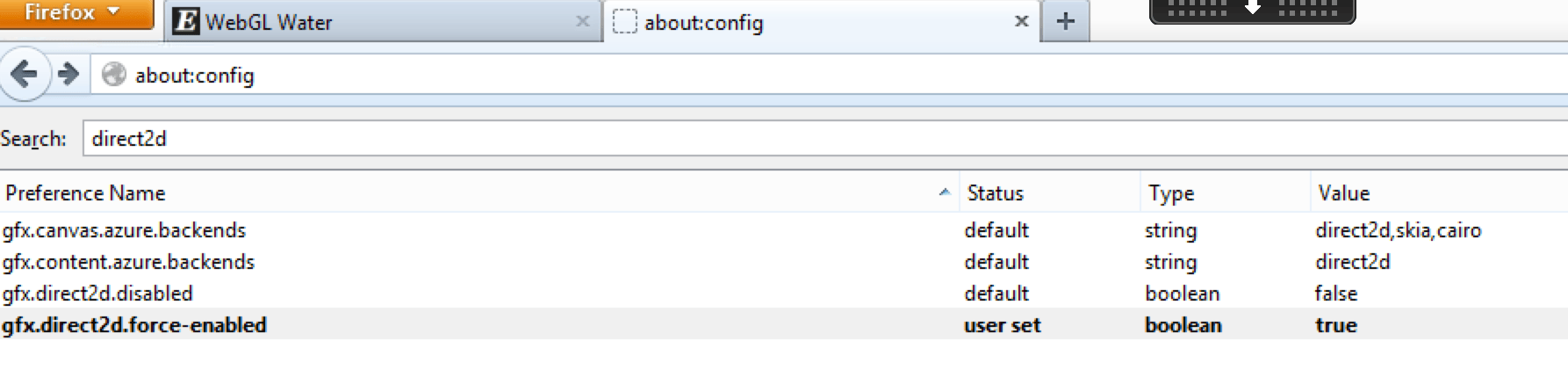
Enable DirectDraw2D

In Mozilla Firefox entering the address about:config into the address bar and setting gfx.direct2d.force-enabled=true will enable WebGL for XenApp on operating system (Server 2008R2/2012/2012R2)

direct2d

You can double click on it and then it will become enabled. (with the value=true) and this is user set.
These settings can be change with a policy or with profile management such as RES Workspace Manager or others.

direct2d-working

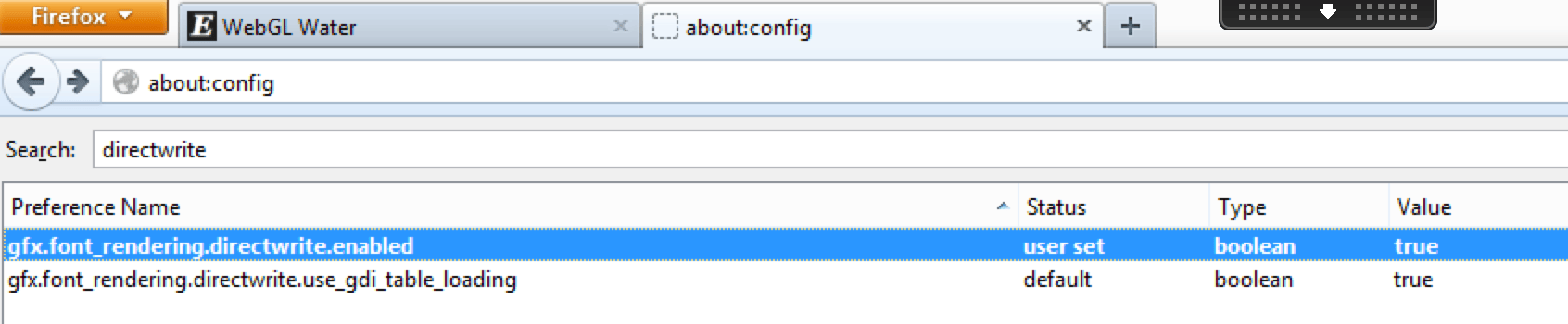
Enable DirectDraw2D

In Mozilla Firefox entering the address about:config into the address bar and setting gfx.font_rendering.directwrite.enabled=true will enable DirectWrite for XenApp on operating system (Server 2008R2/2012/2012R2)

directwrite

You can double click on it and then it will become enabled. (with the value=true) and this is user set.
These settings can be change with a policy or with profile management such as RES Workspace Manager or others.

directwrite-working

Users should be aware and note the caveats and warnings that Mozilla advises if taking this route to above settings for DirectWrite, Direct2D, WebGL

This issue only affects server operating system (example – Win 2012 R2 and Win 2008 R2) and XenApp.

How to force-enable blocked graphics features

If you would like to forcibly enable a graphics feature that is blocked on your system, follow these instructions. Warning: do this at your own risk. There usually are good reasons why features are blocked.

To force-enable WebGL, go to about:config and set webgl.force-enabled=true.

To force-enable WebGL anti-aliasing, go to about:config and set webgl.msaa-force=true.

To force-enable Layers Acceleration, go to about:config and set layers.acceleration.force-enabled=true.

On Windows Vista and Windows 7, to force-enable Direct2D Content Acceleration, go to about:config and set gfx.direct2d.force-enabled=true.

On Android, to force-enable StageFright software decoding, go to about:config and set stagefright.force-enabled=true.

On Windows, you can also spoof your graphics system information to help debug driver blacklisting issues (see bug 604771):

  1. Create spoofed-firefox.bat in the installation folder (e.g. C:\Program Files (x86)\Mozilla Firefox)
  2. Set the new values of spoofed variables ending with a command to launch Firefox:
    SET MOZ_GFX_SPOOF_WINDOWS_VERSION=60001
    SET MOZ_GFX_SPOOF_VENDOR_ID=0x8086
    SET MOZ_GFX_SPOOF_DEVICE_ID=0x0046
    SET MOZ_GFX_SPOOF_DRIVER_VERSION=8.15.10.2302
    “C:\Program Files (x86)\Mozilla Firefox\firefox.exe” -p -no-remote
  3. Double-click spoofed-firefox.bat and create a profile if required
  4. Click the Firefox button, then select Help, finally Troubleshooting Information and check the Graphics section.

If force-enabling a feature doesn’t work, that probably means that your hardware doesn’t support it. For example, layers acceleration currently requires support for 4Kx4K textures, which rules out some graphics cards, like the Intel G31/G33.

Source

Firefox article

http://support.citrix.com/article/CTX202065 (credits to Rachel Berry for writing this CTX article)

Another great blogpost to read about this subject is my friend / CTP fellow Barry Schiffer http://www.barryschiffer.com/citrix-hdx-3d-pro-and-nvidia-grid-browser-experience/ He was the guy who wrote a great blogpost with some very interesting results on performance tuning Mozilla Firefox in a XenApp/XenDesktop session.


NVIDIA GRID 2.0

Nvidia grid 2.0 2x

NVIDIA GRID 2.0

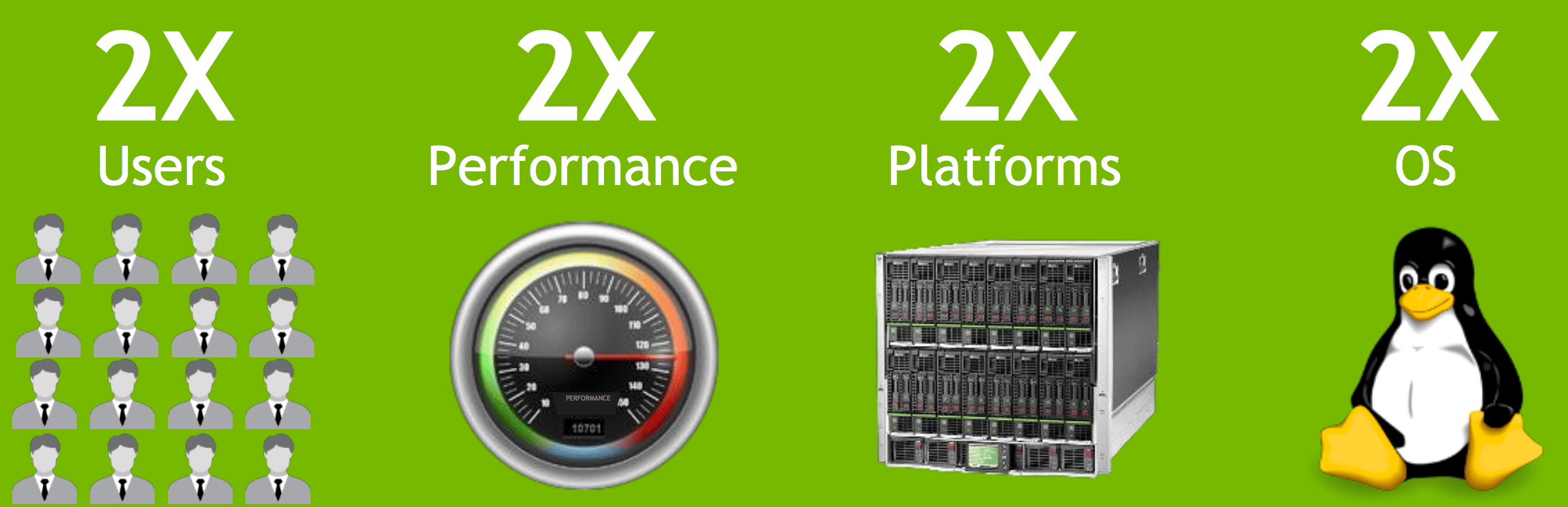
NVIDIA have released the next generation of GRID 2.0. GRID 2.0 is based on the Maxwell architecture and the GRID 1.0 (K1/K2) was based on the Kepler architecture. I have been working with the GRID 1.0 technology since 2012 and it have matured alot in its 2 years of history. When the K1/K2 was released they was first working with GPU pass-through and then vGPU got introduced and you could virtualize the GPUs and increase density, which people wanted. Citrix was with their hypervisor the first company that supported NVIDIA GRID 1.0 and they was also the first company integrating vGPU into their Citrix Studio, so companies could easier provisioning machines with either MCS technology or PVS technology. VMware supported GRID 1.0 vGPU technology in 2015 in their hypervisor VMware vSphere 6.0 and fully integrated with their EUC stack VMware View, so companies can fully provisioning machines. The great thing about GRID 2.0 is that there is no need for a conversation when to choose either a K1 or a K2, if you required GPU compute or GPU framebuffer, M60 are being added to the tope end of the range  and bringing 2x the performance, and if you have bladeserver’s, you can add the powerfull vGPU technology into the bladeserver’s with the M6.

Please notice that M6 will 0nly be supporting newer architecture of vendors not old platforms.

Maxwell architecture

Maxwell architecture is the new architecture of GPUs and a powerful GPU you might know is the Titan X

New GPUs GRID 2.0 and specifications

In GRID 2.0 NVIDIA now have a GPU for blade servers a MXM single socket, High-end GPU called M6

In GRID 2.0 NVIDIA replaces K1/K2 with the new PCIe 3.0 Dual Socket, Dual High-end GPU called M60
The M60 delivers 4096 CUDA or compute and 16GB GDDR5 memory/framebuffer

The M60 has 6x the h.264 encoders of the K2, and also Maxwell supports 4:4:4 chroma sub sampling, which is great news for encoders.

maxwell_grid

Certified GRID 2.0 servers

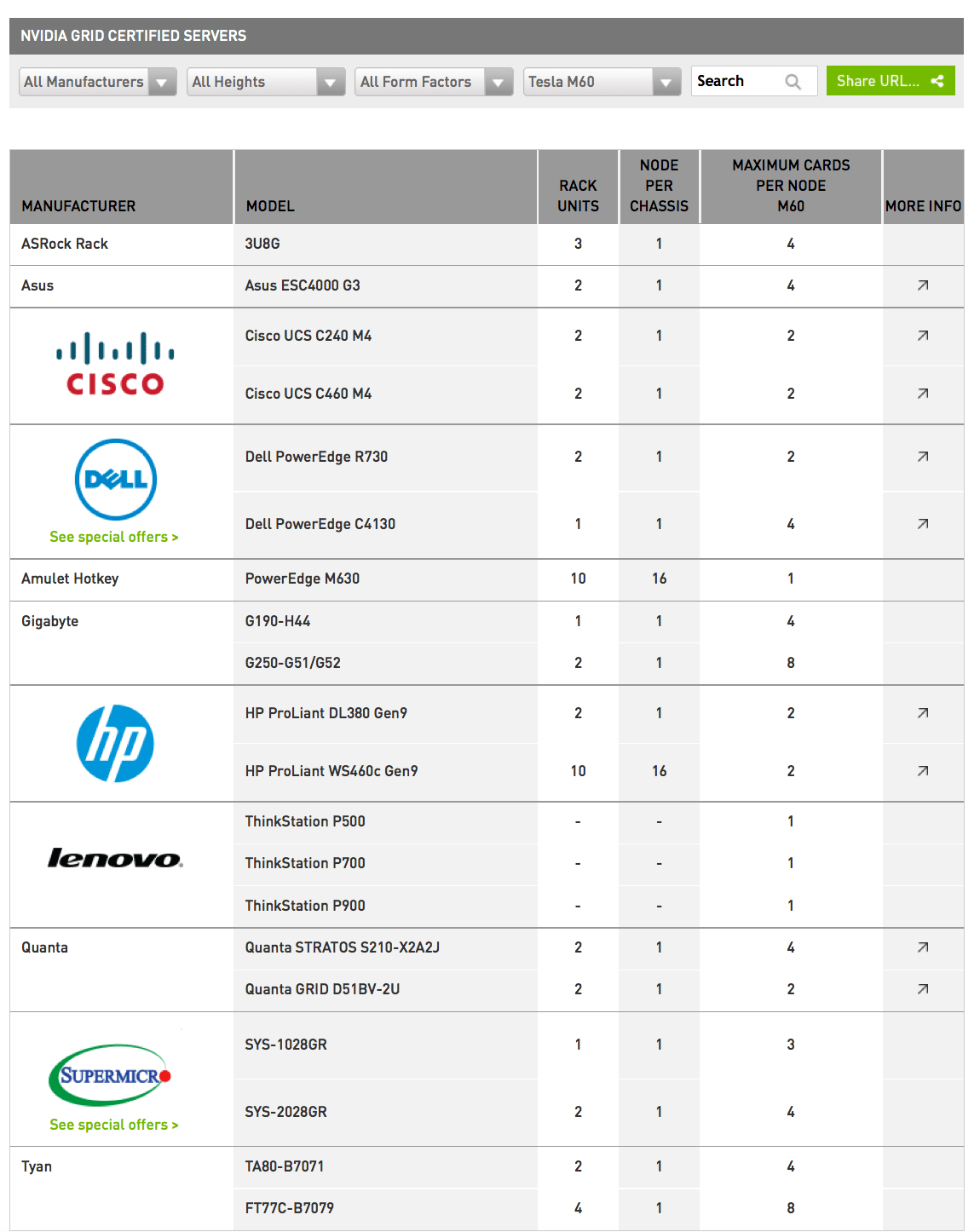
Click the link to see which servers are certified for M60 and M6
http://www.nvidia.com/object/grid-certified-servers.html

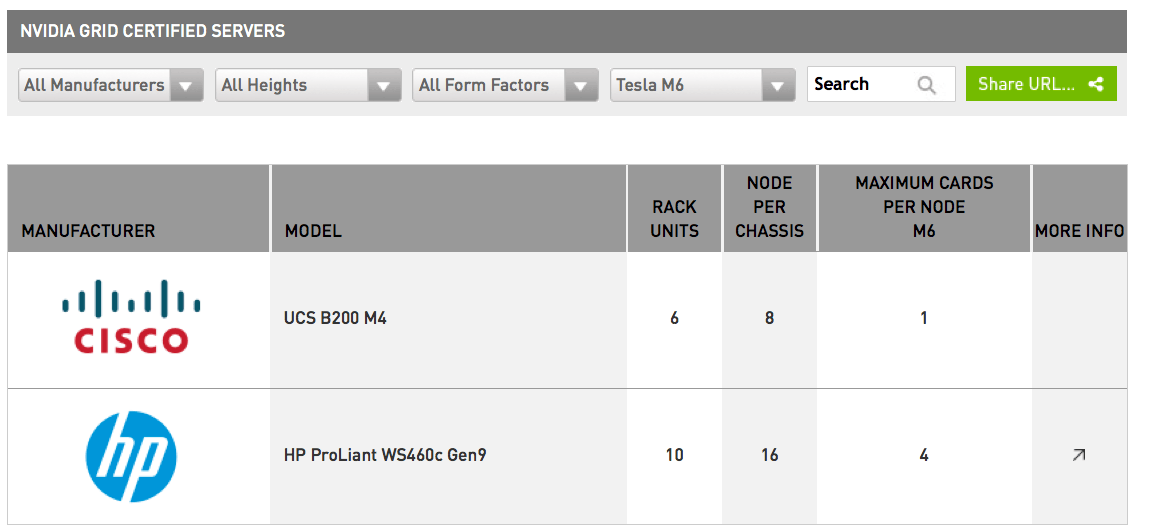
M6 have following servers supported:

m6 certifiedM60 have following servers supported:

m60 certificed

vGPU software editions and license

nvidiagrid20licensemodel

NVIDIA GRID 2.0 software is available in three editions that deliver accelerated virtual desktops to support the needs of your users. These editions include Virtual PC, Virtual Workstation, and Virtual Workstation Extended. GRID perpetual licenses are sold by Concurrent User (CCU).

NVIDIA GRID 2.0 (CCU) stands for ConCurrent User. So basically, per running VM as regardless of whether the user is connected to the VM or not, the VM is connected to the GPU and so consumes a license

NVIDIA GRID 2.0 software is much more than a “driver”. While the software package does include a guest driver for Windows and Linux, it also includes the NVIDIA GRID vGPU manager for VMware vSphere and Citrix XenServer, as well as the license server and M6/M60 mode switching utility.

NVIDIA Tesla M6 and M60 profiles are specific to the M6 and M60. There will be similar profiles as to what NVIDIA had on K1 and K2 (512 MB through 4 GB), all with twice the number of users on M6/ M60 compared to K1/K2. Plus, there is an additional 8 GB profile on M6/M60 which also adds support for CUDA, which wasn’t available on K1/K2.

NVIDIA GRID 2.0 is Maxwell only. If you are an existing customer K1/K2 are unchanged and will remain as a parallel option.

nvidiagrid20licensemodel 2


nvidiagrid20licensemodel 3

The NVIDIA GRID 2.0 solution

nvidiagrid20

Summary

GA of NVIDIA GRID 2.0 (M60 and M6) will be 15 September 2015.

To get NVIDIA GRID 2.0 if you are a Citrix customer you need:
Server hardware that supports NVIDIA GRID 2.0 +NVIDIA GPU M60 or M6 + NVIDIA vGPU Software license + Citrix XenDesktop or XenApp License (XenServer is included in XD/XA licenses)

To get NVIDIA GRID 2.0 if you are a VMware customer you need:
Server hardware that supports NVIDIA GRID 2.0 +NVIDIA GPU M60 or M6  + NVIDIA vGPU Software license + VMware Horizon license (Horizon includes vSphere for Desktop)

If you are a Citrix customer that wants to run on VMware vSphere you need:

Server hardware that supports NVIDIA GRID 2.0 + NVIDIA GPU M60 or M6 + NVIDIA vGPU Software license + Citrix XenDesktop or XenApp License + VMware vSphere Enterprise Plus license or vSphere for Desktop license

Source

NVIDIA GRID Test Drive

NVIDIA GRID Website

NVIDIA GRID News

NVIDIA GRID YouTube Channel

Questions? Ask on our Forums

NVIDIA GRID on LinkedIn

Follow NVIDIAGRID on Twitter

Citrix License FAQ regarding vGPU 

Vmware License FAQ regarding vGPU


NVIDIA GRID vGPU 346.68-348.27

NVIDIA GRID vGPU 346.68-348.27

NVIDIA have released a new GRID Virtual GPU Manager 346.68 for Citrix XenServer 6.5 and VMware vSphere 6.
NVIDIA have in this release also released Windows drivers for vGPU 348.27

Important:

The GRID Virtual GPU Manager 346.68 is not updated in this release, its only the Windows drivers for vGPU 348.27
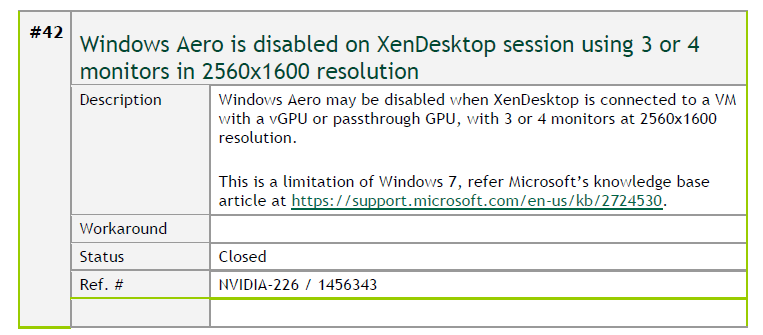
If you have GRID Virtual GPU Manager 346.68 installed in either XenServer or VMware you only need to update your VMs.

The GRID vGPU Manager and Windows guest VM drivers must be installed together.

Older VM drivers will not function correctly with this release of GRID vGPU Manager. Similarly, older GRID vGPU Managers will not function correctly with this release of Windows guest drivers.


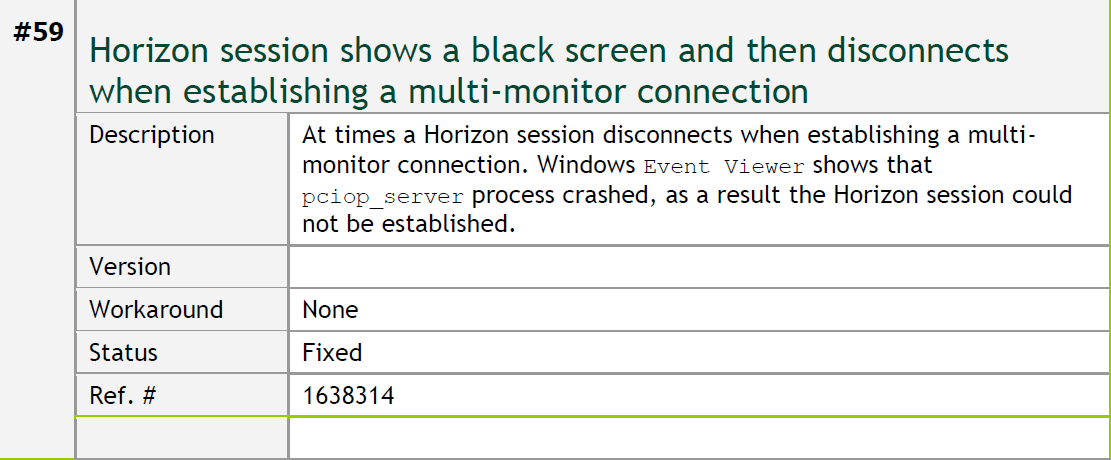
What is fixed in Windows driver for vGPU 348.27 VM using Citrix XenServer 6.5

346.68_-_xenserver_fix

What is fixed in Windows drivers for vGPU 348.27 VM using VMware vSphere 6

346.68_vSphere_fix


Source

Download NVIDIA GRID vGPU 346.68-348.27 for Citrix XenServer 6.5 here

Download NVIDIA GRID vGPU 346.68-348.27 for VMware vSphere 6 here