Mozilla Firefox 40.x Blocks GPU Acceleration for WebGL, Direct2D, DirectWrite with Citrix XenApp on Windows 2008R2/2012/2012R2

Mozilla Firefox 40.x Blocks GPU Acceleration for WebGL, Direct2D, DirectWrite with Citrix XenApp on Windows 2008R2/2012/2012R2

One of the great things about adding a GPU in a Citrix XenApp environment is that you can allow rich graphics and offload CPU and run your DirectX, OpenGL  applications on a XenApp server. In latest version of Mozilla Firefox WebGL, Direct2D, DirectWrite this have been disabled, so you can’t open webpages that uses these graphics in a Citrix XenApp session.

Symptoms or Error

If you open Mozilla Firefox 40.x and try to open a webGL website like http://madebyevan.com/webgl-water
this will not load anymore cause WebGL is default now disabled in Mozilla Firefox. Mozilla Firefox 40.x  blocks GPU acceleration for WebGL, Direct2D, DirectWrite in remote sessions on Windows Server operating systems.

2015-09-15_1553

To determine what content Firefox is blocking, run Firefox in your XenApp remote session and enter the address about:support into the browser address bar. In the section labelled “Graphics” you will see the following content disabled (as of Firefox version 40.0.3):

Direct2D Enabled             Blocked for your graphics card because of unresolved driver issues.
DirectWrite Enabled         false (6.3.9600.17999)
WebGL Renderer             Blocked for your graphics card because of unresolved driver issues.

2015-09-15_1555

Solution

The text “Blocked for your graphics card” is misleading as, in this case, it is not the specific graphics card but general Windows Server operating system remote sessions that are blocked. Mozilla’s published advice on how to override the graphics driver blocks also applies to XenApp sessions on workstation operating system (see bottom of this Mozilla Wiki – Blocklisting/Blocked Graphics Drivers).

Enable WebGL in Mozilla Firefox

In Mozilla Firefox entering the address about:config into the address bar and setting webgl.force-enabled=true will enable WebGL for XenApp on operating system (Server 2008R2/2012/2012R2)

webgl


You can double click on it and then it will become enabled. (with the value=true) and this is user set.
These settings can be change with a policy or with profile management such as RES Workspace Manager or others.

webgl-working

Now you can open the WebGL demo and the graphics will work

2015-09-15_1557

Enable DirectDraw2D

In Mozilla Firefox entering the address about:config into the address bar and setting gfx.direct2d.force-enabled=true will enable WebGL for XenApp on operating system (Server 2008R2/2012/2012R2)

direct2d

You can double click on it and then it will become enabled. (with the value=true) and this is user set.
These settings can be change with a policy or with profile management such as RES Workspace Manager or others.
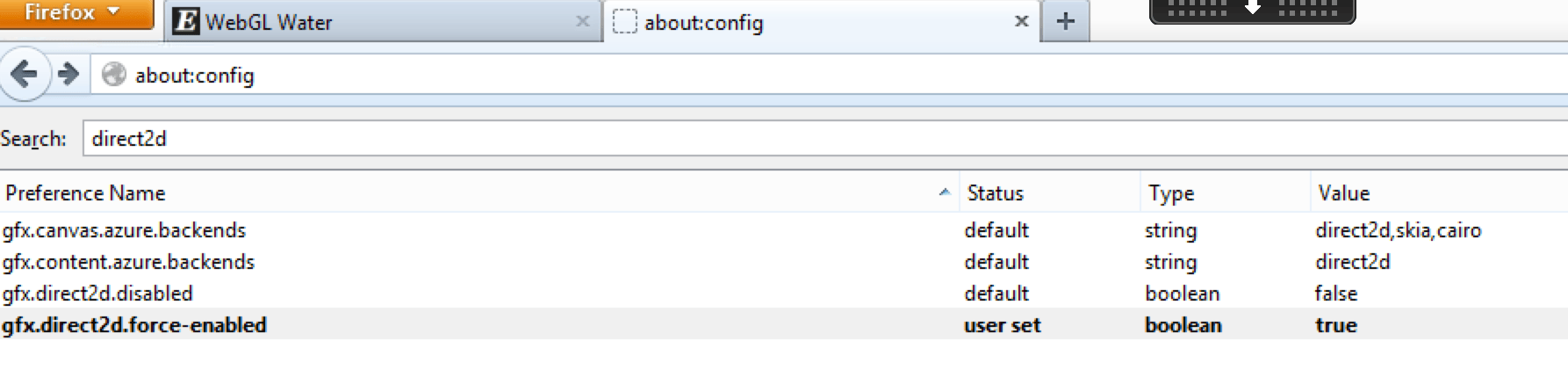
direct2d-working

Enable DirectDraw2D

In Mozilla Firefox entering the address about:config into the address bar and setting gfx.font_rendering.directwrite.enabled=true will enable DirectWrite for XenApp on operating system (Server 2008R2/2012/2012R2)

directwrite

You can double click on it and then it will become enabled. (with the value=true) and this is user set.
These settings can be change with a policy or with profile management such as RES Workspace Manager or others.
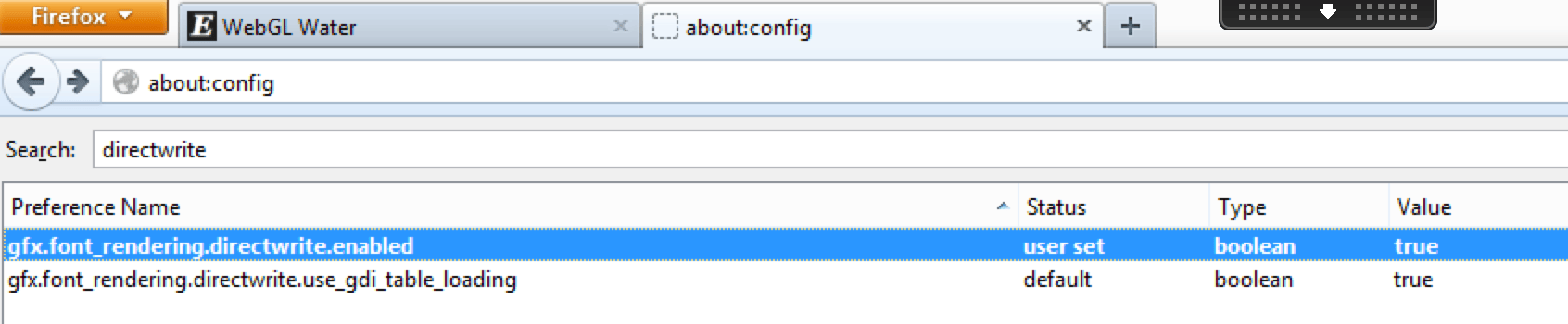
directwrite-working

Users should be aware and note the caveats and warnings that Mozilla advises if taking this route to above settings for DirectWrite, Direct2D, WebGL

This issue only affects server operating system (example – Win 2012 R2 and Win 2008 R2) and XenApp.

How to force-enable blocked graphics features

If you would like to forcibly enable a graphics feature that is blocked on your system, follow these instructions. Warning: do this at your own risk. There usually are good reasons why features are blocked.

To force-enable WebGL, go to about:config and set webgl.force-enabled=true.

To force-enable WebGL anti-aliasing, go to about:config and set webgl.msaa-force=true.

To force-enable Layers Acceleration, go to about:config and set layers.acceleration.force-enabled=true.

On Windows Vista and Windows 7, to force-enable Direct2D Content Acceleration, go to about:config and set gfx.direct2d.force-enabled=true.

On Android, to force-enable StageFright software decoding, go to about:config and set stagefright.force-enabled=true.

On Windows, you can also spoof your graphics system information to help debug driver blacklisting issues (see bug 604771):

  1. Create spoofed-firefox.bat in the installation folder (e.g. C:\Program Files (x86)\Mozilla Firefox)
  2. Set the new values of spoofed variables ending with a command to launch Firefox:
    SET MOZ_GFX_SPOOF_WINDOWS_VERSION=60001
    SET MOZ_GFX_SPOOF_VENDOR_ID=0x8086
    SET MOZ_GFX_SPOOF_DEVICE_ID=0x0046
    SET MOZ_GFX_SPOOF_DRIVER_VERSION=8.15.10.2302
    “C:\Program Files (x86)\Mozilla Firefox\firefox.exe” -p -no-remote
  3. Double-click spoofed-firefox.bat and create a profile if required
  4. Click the Firefox button, then select Help, finally Troubleshooting Information and check the Graphics section.

If force-enabling a feature doesn’t work, that probably means that your hardware doesn’t support it. For example, layers acceleration currently requires support for 4Kx4K textures, which rules out some graphics cards, like the Intel G31/G33.

Source

Firefox article

http://support.citrix.com/article/CTX202065 (credits to Rachel Berry for writing this CTX article)

Another great blogpost to read about this subject is my friend / CTP fellow Barry Schiffer http://www.barryschiffer.com/citrix-hdx-3d-pro-and-nvidia-grid-browser-experience/ He was the guy who wrote a great blogpost with some very interesting results on performance tuning Mozilla Firefox in a XenApp/XenDesktop session.
 

NVIDIA GRID 2.0

Nvidia grid 2.0 2x

NVIDIA GRID 2.0

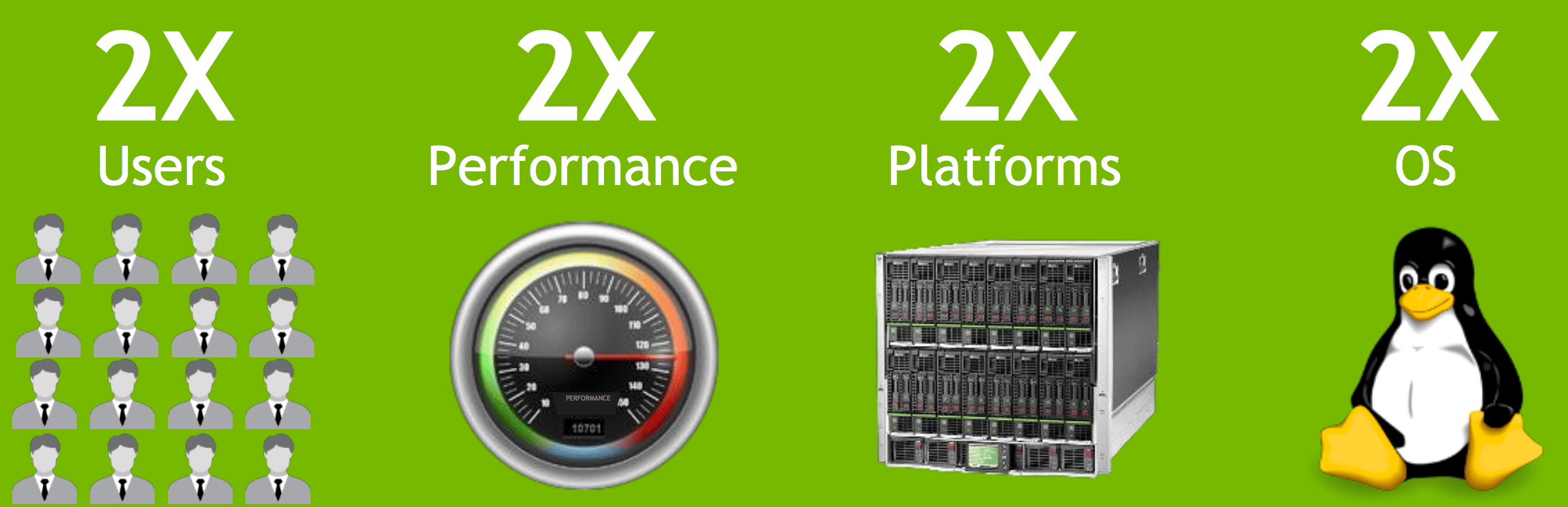
NVIDIA have released the next generation of GRID 2.0. GRID 2.0 is based on the Maxwell architecture and the GRID 1.0 (K1/K2) was based on the Kepler architecture. I have been working with the GRID 1.0 technology since 2012 and it have matured alot in its 2 years of history. When the K1/K2 was released they was first working with GPU pass-through and then vGPU got introduced and you could virtualize the GPUs and increase density, which people wanted. Citrix was with their hypervisor the first company that supported NVIDIA GRID 1.0 and they was also the first company integrating vGPU into their Citrix Studio, so companies could easier provisioning machines with either MCS technology or PVS technology. VMware supported GRID 1.0 vGPU technology in 2015 in their hypervisor VMware vSphere 6.0 and fully integrated with their EUC stack VMware View, so companies can fully provisioning machines. The great thing about GRID 2.0 is that there is no need for a conversation when to choose either a K1 or a K2, if you required GPU compute or GPU framebuffer, M60 are being added to the tope end of the range  and bringing 2x the performance, and if you have bladeserver’s, you can add the powerfull vGPU technology into the bladeserver’s with the M6.

Please notice that M6 will 0nly be supporting newer architecture of vendors not old platforms.

Maxwell architecture

Maxwell architecture is the new architecture of GPUs and a powerful GPU you might know is the Titan X

New GPUs GRID 2.0 and specifications

In GRID 2.0 NVIDIA now have a GPU for blade servers a MXM single socket, High-end GPU called M6

In GRID 2.0 NVIDIA replaces K1/K2 with the new PCIe 3.0 Dual Socket, Dual High-end GPU called M60
The M60 delivers 4096 CUDA or compute and 16GB GDDR5 memory/framebuffer

The M60 has 6x the h.264 encoders of the K2, and also Maxwell supports 4:4:4 chroma sub sampling, which is great news for encoders.

maxwell_grid

Certified GRID 2.0 servers

Click the link to see which servers are certified for M60 and M6
http://www.nvidia.com/object/grid-certified-servers.html

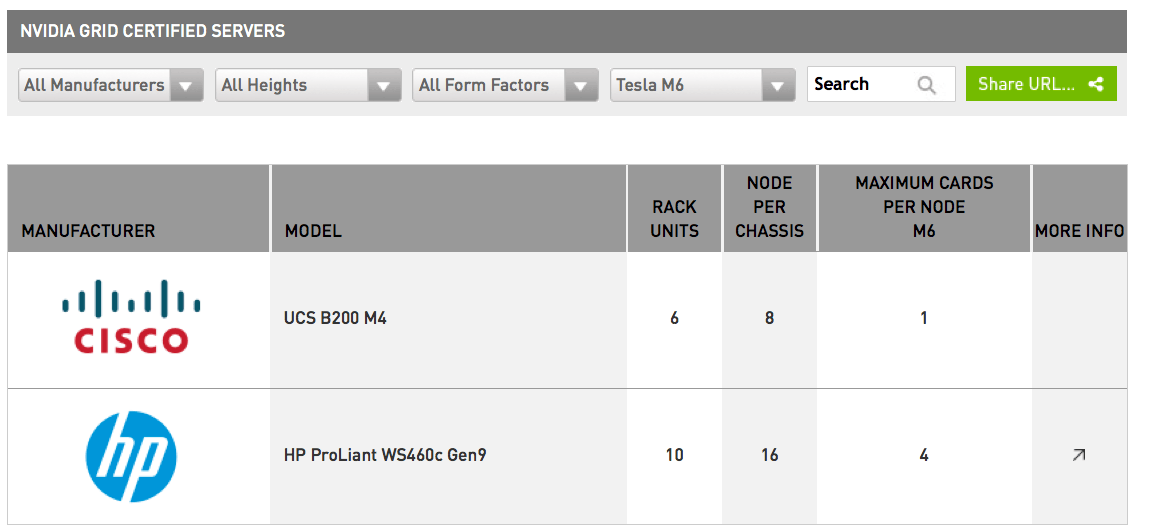
M6 have following servers supported:

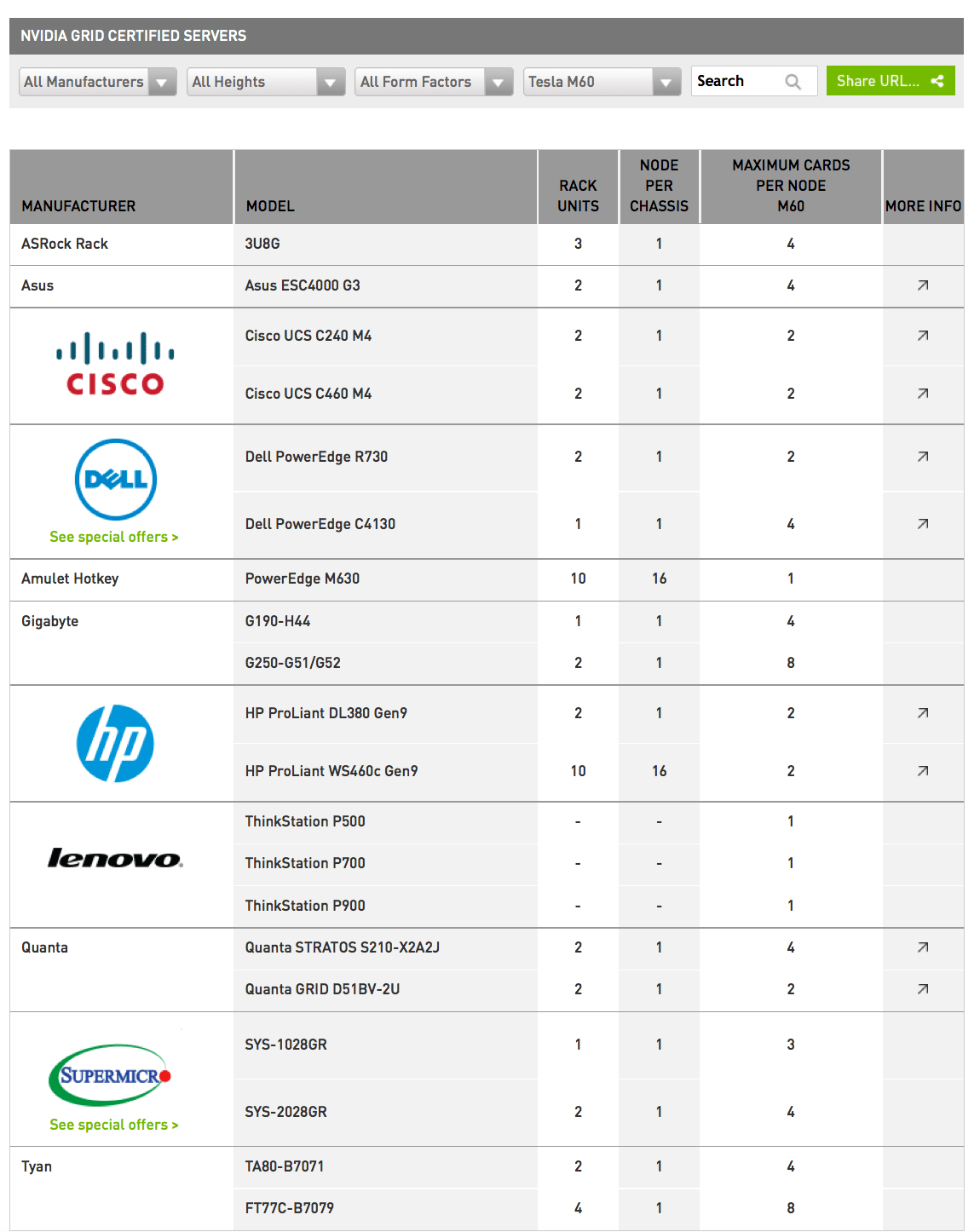
m6 certifiedM60 have following servers supported:

m60 certificed

vGPU software editions and license

nvidiagrid20licensemodel

NVIDIA GRID 2.0 software is available in three editions that deliver accelerated virtual desktops to support the needs of your users. These editions include Virtual PC, Virtual Workstation, and Virtual Workstation Extended. GRID perpetual licenses are sold by Concurrent User (CCU).

NVIDIA GRID 2.0 (CCU) stands for ConCurrent User. So basically, per running VM as regardless of whether the user is connected to the VM or not, the VM is connected to the GPU and so consumes a license

NVIDIA GRID 2.0 software is much more than a “driver”. While the software package does include a guest driver for Windows and Linux, it also includes the NVIDIA GRID vGPU manager for VMware vSphere and Citrix XenServer, as well as the license server and M6/M60 mode switching utility.

NVIDIA Tesla M6 and M60 profiles are specific to the M6 and M60. There will be similar profiles as to what NVIDIA had on K1 and K2 (512 MB through 4 GB), all with twice the number of users on M6/ M60 compared to K1/K2. Plus, there is an additional 8 GB profile on M6/M60 which also adds support for CUDA, which wasn’t available on K1/K2.

NVIDIA GRID 2.0 is Maxwell only. If you are an existing customer K1/K2 are unchanged and will remain as a parallel option.

nvidiagrid20licensemodel 2


nvidiagrid20licensemodel 3

The NVIDIA GRID 2.0 solution

nvidiagrid20

Summary

GA of NVIDIA GRID 2.0 (M60 and M6) will be 15 September 2015.

To get NVIDIA GRID 2.0 if you are a Citrix customer you need:
Server hardware that supports NVIDIA GRID 2.0 +NVIDIA GPU M60 or M6 + NVIDIA vGPU Software license + Citrix XenDesktop or XenApp License (XenServer is included in XD/XA licenses)

To get NVIDIA GRID 2.0 if you are a VMware customer you need:
Server hardware that supports NVIDIA GRID 2.0 +NVIDIA GPU M60 or M6  + NVIDIA vGPU Software license + VMware Horizon license (Horizon includes vSphere for Desktop)

If you are a Citrix customer that wants to run on VMware vSphere you need:

Server hardware that supports NVIDIA GRID 2.0 + NVIDIA GPU M60 or M6 + NVIDIA vGPU Software license + Citrix XenDesktop or XenApp License + VMware vSphere Enterprise Plus license or vSphere for Desktop license

Source

NVIDIA GRID Test Drive

NVIDIA GRID Website

NVIDIA GRID News

NVIDIA GRID YouTube Channel

Questions? Ask on our Forums

NVIDIA GRID on LinkedIn

Follow NVIDIAGRID on Twitter

Citrix License FAQ regarding vGPU 

Vmware License FAQ regarding vGPU


NVIDIA GRID vGPU 346.68-348.27

NVIDIA GRID vGPU 346.68-348.27

NVIDIA have released a new GRID Virtual GPU Manager 346.68 for Citrix XenServer 6.5 and VMware vSphere 6.
NVIDIA have in this release also released Windows drivers for vGPU 348.27

Important:

The GRID Virtual GPU Manager 346.68 is not updated in this release, its only the Windows drivers for vGPU 348.27
If you have GRID Virtual GPU Manager 346.68 installed in either XenServer or VMware you only need to update your VMs.

The GRID vGPU Manager and Windows guest VM drivers must be installed together.

Older VM drivers will not function correctly with this release of GRID vGPU Manager. Similarly, older GRID vGPU Managers will not function correctly with this release of Windows guest drivers.


What is fixed in Windows driver for vGPU 348.27 VM using Citrix XenServer 6.5

346.68_-_xenserver_fix

What is fixed in Windows drivers for vGPU 348.27 VM using VMware vSphere 6

346.68_vSphere_fix


Source

Download NVIDIA GRID vGPU 346.68-348.27 for Citrix XenServer 6.5 here

Download NVIDIA GRID vGPU 346.68-348.27 for VMware vSphere 6 here

Lakeside Case Study – sizing NVIDIA GRID vGPU

aibelcoverLakeside Case Study – sizing NVIDIA GRID vGPU

Hi all

I am very proud to share the results of the work I did with my friend and coworker Magnar Johnsen from FirstPoint. We have been developing for a long time a smart new way of analyzing data (iOPS, CPU, Memory, GPU, Latency..) and different pieces of software was evaluated and Lakeside Software was the product we decided to go with and both our companies Poppelgaard.com and Firstpoint who are a Lakeside partner so we are legit to make assessments for clients using Lakeside Software. Below article helps you if you are about to size a NVIDIA GRID vGPU solution using either Citrix XenServer or VMware vSphere. If you have been at NVIDIA GTC, Citrix Synergy, BriForum, E2EVC or seen me talking at a Citrix User Group you might have seen the results of the work we did, thats changing on how we think applications are impacting that requires a GPU.

Magnar and I go way back.

Magnar and I have a long past with remote graphics and when we put our minds together we create something that is beautiful. Last year at Citrix Synergy audience could see how people could virtualize 3d remote graphics from Virtual Reality solution using Oculus Rift “Facebook” from the cloud. This was showed for the first time for audience and Citrix loved the idea and redesigned their exhibit about HDX 3D Pro next to FrameHawk, and sorry FrameHawk we stole all the attention with everybody wants to try the VR solution. The cool thing was VR was cool, but me and Magnar worked months “hard” to analyze the data we find at Aibel and we did very successful assessment and we shared the findings at Brian Madden BriForum in May 2014, just after Citrix Synergy, and the audience could for the first time learn the lessons we experienced and we could see applications behavior is not “just” what you might think or expect it to be. Analytics is the key to understand your app. Lets talk about why…

Lets dig into the case study we did at Aibel

Aibel is an industrial pioneer with a history dating back more than a century. With around 5,500 employees worldwide the company is a leading supplier of engineering services related to oil, gas and renewable energy.

Aibel is a huge user of desktop virtualisation technology and is currently delivering virtual desktops to around 4,500 users. The challenge was to work out what to do with the remaining 1500 CAD/CAM workstations where graphics intensive modelling of 3D designs tied them to powerful physical workstations.

With projects occurring at the eight Aibel locations in Norway as well as at the Aibel offices in Thailand and Singapore the amount of data flowing across the WAN was increasing and becoming unwieldy. Large engineering models needed to be accessed on location and shared with engineers and designers in all Aibel office locations.

Virtualisation was seen as the solution to these issues but the challenge was how to virtualise graphics intensive workloads without impacting user experience or drive uneconomic datacentre specifications.

Partner Expertise

Firstpoint AS, a trusted Citrix Gold partner and virtualisation specialists, were brought in to advise Aibel on how to best virtualise this tricky user group.

They teamed up with Thomas Poppelgaard, an independent expert in virtualisation and GPU technologies and together they started an initial survey of Aibel’s situation.

GPU Acceleration Approach

It became quickly clear that the only way to successfully virtualise the 3D graphics workstations in an economically viable fashion was to deploy GPU acceleration technology in the datacentre. NVIDIA’s GRID cards would allow dedicated and shared GPU accelerators to be placed in the datacentre to be used by virtual desktops offloading server CPUs and removing user experience impact for other virtual desktop users.

The Challenge

Having identified the technology approach the challenge now was to work out how to size the workload of these 1500 users and design a solution that would deliver user experience at least as good as their current physical desktop experience. In order to do that the team needed to work out:

  • What graphics applications are in use today
  • Who is using which applications and workstations
  • What GPU processor power is being consumed today by application, user and workstationPoppelgaard.com and FirstPoint brought in Lakeside Software’s SysTrack to do this job. Using SysTrack’s granular data collection model they could model a complete picture of application and GPU workload across all the users and workstations in use at Aibel today.

The Outcome

aibel-results1Using SysTrack the team has been able to build a complete inventory of the existing application and workstation estate and user behaviour. Using these analytics and SysTrack technologies a detailed specification and design for the future NVIDIA GRID based desktop virtualisation infrastructure has been created. Aibel is able to trust this design

as it is completely based on observed data captured from their existing estate and modelled using industry leading technologies from Lakeside and NVIDIA to create the optimal solution for Aibel’s situation. Key in any design is to not over provision the solution and thereby inflate the cost of the solution. On the other hand under provisioning will lead to a poor user experience and potential project failure. SysTrack ensures the right data is used to make the right decision for the future estate.

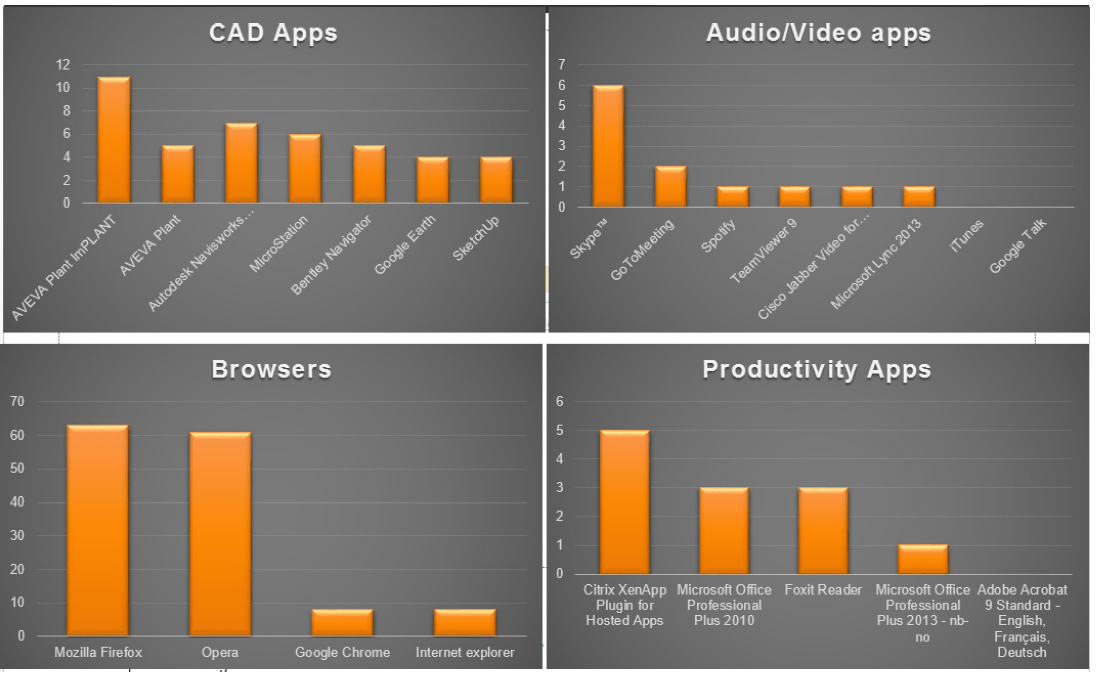
The assessment was primarily executed to understand Aibel engineers CAD applications such as Aveva PDMS, Bentley Microstation, etc. Shown below is a summary of average GPU usage for 1500 physical machines which revealed surprisingly that internet browsers are very GPU intensive compared to other applications.

Another benefit of leveraging SysTrack was the SysTrack MarketPlace report that had been co-authored by Lakeside and NVIDIA which allowed the team to convert all the data collected into accurate sizing of the number of NVIDIA GRID cards by model number required to offload the GPU workload.

aibel-resultsvgpuThe output from SysTrack also showed how GPUs were being used across the existing estate and how hard they were being utilised. Using jointly authored Lakeside/NVIDIA reports this data was then used to calculate estimated vGPU profiles.


Source


thomas poppelgaard CTP & MVP

Citrix technology professional – CTP, and Microsoft Most Valuable Professional MVP, Thomas Poppelgaard provides professional services. Write to me on my email thomas@poppelgaard.com or call on my cell +45 53540356


VMware Horizon View 6.1.1

VMware Horizon View 6.1.1 has been released

This is my first blogpost about VMware EUC product and VMware is investing alot in end user computing space and making this GPU enabled.

In release 6.1.1 VMware have enabled GPU pass-through (vDGA) to Linux virtual machines that run on following OS (Ubuntu, RHEL, CentOS, or NeoKylin) this technology can be used with NVIDIA GRID

This means with 1 physically NVIDIA GRID K1 you could have 4 linux VMs with GPU pass-through,k cause a K1 have 4 physically GPUs. With 1 physically NVIDIA GRID K2, you can have 2 linux VMs with GPU pass-through, cause a K2 have 2 physically GPUs

Below gives you an understand which GPU methodology I am talking about with what you can do with vDGA.
FYI – VMware View 6.1.1. supports NVIDIA GRID vGPU but only with Windows OS.
KUDUS goes to TeamRGE, for using their graphics.

vDGA_GPU_pass-through


vDGA_GPU_pass-through_2

What’s New in This Release of VMware Horizon View 6.1.1

VMware Horizon View 6.1.1 resolves known issues in previous releases and provides the following new features and enhancements:

  • Client Drive Redirection
    Users can share folders and drives on their local client systems with remote desktops and applications. Client Drive Redirection is supported on VDI desktops that run on single-user machines and on RDS desktops and applications. The feature is supported on Windows clients and, as a Tech Preview, on Mac OS X clients.
  • Horizon 6 for Linux Desktops
    You can now deploy Horizon 6 desktops on Linux virtual machines. With the View Agent for Linux installer, you can set up parent virtual machines or templates that run on Ubuntu, RHEL, CentOS, or NeoKylin and deploy Linux-based VDI desktop pools in View Administrator. You can configure Linux virtual machines to use vDGA to support 3D graphics applications running on NVIDIA GRID GPU cards. Some features such as SSO, automated provisioning, and local device redirection are not supported in this release. For details, see Setting Up Horizon 6 for Linux Desktops guide.
  • Serial Port Redirection
    With serial port redirection, users can redirect locally connected serial (COM) ports such as built-in RS232 ports or USB to Serial adapters. Devices such as printers, bar code readers, and other serial devices can be connected to these ports and used in the remote desktops.
  • Support for Windows Media Multimedia Redirection (MMR) for RDS Desktops
    Windows Media MMR is now supported for videos playing on RDS desktops. In past releases, this feature was supported only on VDI desktops that run on single-user machines. For details about supported desktops, see see System Requirements for Windows Media MMR in the Setting Up Desktop and Application Pools in View guide.
  • HTML Access Support for Hosted Apps
    Users can now connect to Hosted Apps from HTML Access Web clients. To take advantage of this feature, you must download and install a separate HTML Access installer from the Horizon 6 version 6.1.1 download page. For details, see To use HTML Access with Hosted Apps.

Source

VMware Horizon 6.1.1 release notes


Citrix technology professional – CTP, and Microsoft Most Valuable Professional MVP, Thomas Poppelgaard provides professional services. Write to me on my email thomas@poppelgaard.com or call on my cell +45 53540356