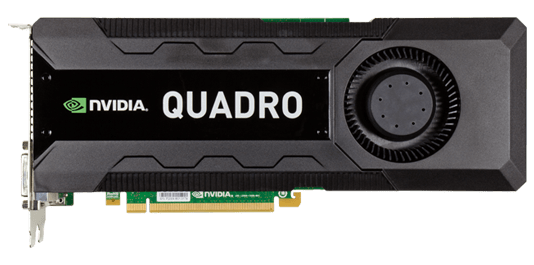
XenServer 6.x Multi-GPU Passthrough for XenApp HDX 3D and XenDesktop HDX 3D Pro Graphics
Citrix have released a new article on how to configure GPU pass-through on Citrix XenServer 6.x for Citrix XenDesktop HDX 3D Pro.
I have rewriten the article and i recommend belowed to both XenApp HDX 3D and XenDesktop HDX 3D Pro
I will work on a best practice document on XenServer Multi-GPU pass-through & XenDesktop HDX 3D Pro & XenApp HDX 3D between X-mas and New Year and release this, so look out for this.
Enjoy /Poppelgaard
Summary
This article describes how to configure XenServer 6.0 with XenDesktop for HDX 3D Pro Graphics so that a host workstation with multiple graphics cards can be shared by an equal number of concurrent high-end professional graphics users (one user per GPU), thereby reducing the cost per user.
Hardware Requirements
The Server CPU should be IOMMU enabled for AMD processors or VT-d enabled for Intel processors.
- XenServer Tools 6.x should be installed on the VM
- Install the latest graphics driver from NVIDIA. **
** important its recommended to use the certified driver from the CAD/CAM/CAE vendor to the GPU card to get the best performance + to reduce the issues that could be in the CAD/CAM/CAE application and to gain support of the CAD/CAM/CAE vendor.
HDX 3D Pro Graphics utilizes one virtual CPU completely for extracting desktop surfaces, typically 12 to 30 times per second. If Aero is enabled on Windows this requires a second virtual CPU. In addition, at least two vCPU is required for the graphics applications. Graphics applications are often CPU intensive, even with hardware acceleration of graphics rendering provided by the GPU. Hence it is important to configure the virtual machine running HDX 3D Pro Graphics with at least four virtual CPUs. Following are the instructions for increasing the number of virtual CPUs on XenServer:
Refer to the following Knowledge Center articles for increasing vCPUs per virtual machine:
CTX126524 – How to Set Cores-Per-Socket Parameter for a Virtual Machine
CTX125574 – XenServer 5.6 Multi-GPU Passthrough for XenDesktop HDX 3D Pro Graphics
Refer to the following Knowledge Center article for XenServer Host and GPUs support matrix for “HDX 3D Pro”:
CTX131385 – Citrix Tested Hardware for the HDX 3D Pro Feature in XenDesktop 5.5 or 5.6
For formal support of XenServer multi-GPU pass through solution, refer to the Hardware Compatibility List under GPU Pass-thru Support Matrix for XenServer: http://hcl.xensource.com/GPUPass-throughDeviceList.aspx
Software Requirements
XenServer Host
- Citrix XenServer 6.x with XenServer Enterprise or Platinum Edition License or Citrix XenDesktop Enterprise or Platinum edition which include license for Citrix XenServer Enterprise that enables GPU pass-through.
- Software on guest virtual machine, hosting XenDesktop HDX 3D Pro Graphics desktop
- XenDesktop 5.5 or later Virtual Desktop Agent , “recommended Rollup 1 for XenDesktop 5.6 Feature Pack 1 (5.6.2)”
Software on user device (endpoint)
- HDX 3D Pro Graphics online plug-in for Windows 12.0.33 (includes special GPU codec to minimize bandwidth requirements), or standard 12.0.3 online plug-in if only the CPU codec is required
– Or –
- 11.100 Citrix Receiver for Linux (includes CPU codec only)
Refer to the XenServer 6.0 documentation for more details on XenServer configuration. Similarly for XenDesktop 5.5 and HDX 3D Pro Graphics deployment, refer to the relevant documentation (such as HDX 3D Pro Graphics CTX124443 – XenDesktop 4 HDX 3D for Professional Graphics 1.1 – Administrator’s Guide).
Background
HDX 3D Pro Graphics, a feature of XenDesktop Enterprise and Platinum editions, enables the delivery of high-end 3D graphics applications, including OpenGL and DirectX based applications, such as CAD/CAM and medical imaging. Typically these applications are very computation-intensive and require hardware acceleration provided by a graphics processing unit (GPU). To support remoting of high-end 3D graphics based applications, Pro Graphics leverages a graphics card on the host workstation (usually located in the data center) for 3D rendering and optionally for deep compression of the data stream).
Because multi-user hypervisors prior to XenServer 5.6 did not support GPU access, HDX 3D Pro Graphics was previously recommended with physical machines only, whether physical desktop machines or blade or rack workstations.
With the Multi-GPU Pass-through feature of XenServer 6.x it is now possible to map a physical GPU to a virtual machine; in fact, you can map multiple GPUs to an equal number of virtual machines, one to one. XenServer 6.x with GPU mapping in the direct assign mode is the ideal solution for reducing hardware costs for high-end 3D graphics. Consider a server that has multiple GPUs or possibly (not yet tested) one that is connected to a multi-GPU appliance (such as NVIDIA Quadro Plex S4). In this case, each GPU can be mapped to one virtual machine, which can get access to the GPU and is powered by HDX 3D Pro Graphics. On a powerful multi-core server (such as a dual quad-core Nehalem processor server that would normally support 80 or more regular XenDesktop users running typical office applications), additional virtual machines could potentially run regular XenDesktop for normal use cases not requiring graphics hardware acceleration, subject to performance, thereby further reducing the cost per user.
Procedure
Mapping the GPU to a Virtual Machine
Mapping of XenServer 6.x Virtual Machine with GPU can either be done from CLI or from GUI. It is preferred to use CLI, since it gives exact GPU cards data as compared to XenCenter GUI.
Note:
- Citrix XenServer 6.x with XenServer Enterprise or Platinum Edition License or Citrix XenDesktop Enterprise or Platinum edition which include license for Citrix XenServer Enterprise that enables GPU pass-through.
- Notice !!!! this is informations i can confirm.
Snapshot does not work with GPU Cards. It is highly recommended to create/delete/revert snapshot of VM when GPU card is not assigned to VM or else you may have garbage entries in XenServer and VM will not start properly.
- You should not take default console using XenCenter after assigning GPU Card and Installing NVIDIA Driver. Use RDP connected to the VM for this.
Mapping GPU to Virtual Machine using CLI
- Attach Graphics cards to XenServer and get their list by running lspci | grep VGA, for example for ATI and nVIDIA attached cards run command, as displayed in the screen shot:
Note: If cards are not listed properly then they are not attached properly to the server, reattach them and again list using lspci.
- If Xenserver is not licensed with Platinum Edition License then get it Licensed.
- Now check which all groups are created on XenServer. Note down GPU Groups UUID, for example, for ATI and nVIDIA attached cards run command, as displayed in the following screen shot:
- Now check which all cards are there in XenServer. For Example for ATI and nVIDIA attached cards run command, as displayed in the following screen shot:
- Assign GPU card to Virtual Machine. For this, you must note down UUID of the Virtual Machine, as displayed in the following screen shot:
- Now check if any GPU is already assigned to it. If yes, then shut down the Virtual Machine and destroy that assignment.
- You can notice in XenCenter that the GPU is unassigned:
- Now Assign GPU to the Virtual Machine. You will get vgpu uuid as output:
You can see same assignment is XenCenter, as displayed in the following screen shot:
- Now you can start the Virtual Machine. Install latest nVidia Driver and take VNC console to install HDX3DPro Setup.
Mapping GPU to Virtual Machine using XenCenter GUI (prone to errors)
Note: You must be very careful while performing operations with XenCenter GUI, since removed cards entries can be there in XenCenter.
In Xencenter, you must access the Virtual Machine Properties and in GPU section select the GPU type. Once this is done, you will have GPU assigned to the Virtual Machine.