Citrix XenDesktop 7.7 and Citrix XenApp 7.7

xd77

Citrix have released a new version of Citrix XenDesktop 7.7 and XenApp 7.7

My first impressions of this release is, this is the release you should update to if you are running Citrix XenDesktop 7.x, the speed improvements in the GUI is incredible, its snappy realiable and makes you work without waiting it for loading when you click around the catalogs and the delivery groups. The 7.7 release is an important release from Citrix where Citrix is now fully supporting Microsoft Azure, so you can provisioning VDI or XenApp machines on Microsoft Azure with MCS technology. Another long waited feature is “Zones” this feature will be loved by customers that have branch offices where there is a requirement to install local Citrix infrastructure components such as Studio, Director, Site database, Zones was very common used in IMA architecture and now its finally implemented in FMA, great job Citrix. These are just some of the all the new huge improvements and this is the best release of XenApp/XenDesktop. Other new product release that is included in the XenDesktop/XenApp 7.7 media is HDX RealTime Optimization Pack 2.0, License Server 11.13.1, Profile Management 5.4, Citrix Provisioning 7.7, Citrix Receiver 4.4 is not in the iso, but you have to download this seperated, which i highly recommends.

What a great year to finish with and happy updating and I wish you all a Happy New Year.

Citrix XenDesktop 7.7 & Citrix XenDesktop 7.7 contains following software updates and new features and enhancements, this blog post covers all whats new in the architecture and components. Citrix Provisioning 7.7 is covered in a seperated article here.

Whats new in release 7.7 FMA

This product release includes the following new and enhanced features.

  • Zones

citrix xa xd 7.7

Deployments that span widely-dispersed locations connected by a WAN can face challenges due to network latency and reliability. Configuring zones can help users in remote regions connect to local resources without forcing connections to traverse large segments of the WAN. Using zones allows effective Site management from a single Citrix Studio console, Citrix Director, and the Site database. This saves the costs of deploying, staffing, licensing, and maintaining additional Sites containing separate databases in remote locations.

Zones can be helpful in deployments of all sizes. You can use zones to keep applications and desktops closer to end users, which improves performance.

For more information, see the Zones article.

  • Improved database flow and configuration

When you configure the databases during Site creation, you can now specify separate locations for the Site, Logging, and Monitoring databases. Later, you can specify different locations for all three databases. In previous releases, all three databases were created at the same address, and you could not specify a different address for the Site database later.

You can now add more Delivery Controllers when you create a Site, as well as later. In previous releases, you could add more Controllers only after you created the Site.

For more information, see the Databases and Controllers articles.

  • Application limits

Configure application limits to help manage application use. For example, you can use application limits to manage the number of users accessing an application simultaneously. Similarly, application limits can be used to manage the number of simultaneous instances of resource-intensive applications, this can help maintain server performance and prevent deterioration in service.

For more information, see the Manage applications article.

  • Multiple notifications before machine updates or scheduled restarts

You can now choose to repeat a notification message that is sent to affected machines before the following types of actions begin:

Updating machines in a Machine Catalog using a new master image

Restarting machines in a Delivery Group according to a configured schedule

If you indicate that the first message should be sent to each affected machine 15 minutes before the update or restart begins, you can also specify that the message be repeated every five minutes until the update/restart begins.

For more information, see the Manage Machine Catalogs and Manage machines in Delivery Groups articles.

  • API support for managing session roaming

By default, sessions roam between client devices with the user. When the user launches a session and then moves to another device, the same session is used and applications are available on both devices. The applications follow, regardless of the device or whether current sessions exist. Similarly, printers and other resources assigned to the application follow.

You can now use the PowerShell SDK to tailor session roaming. This was an experimental feature in the previous release.

For more information, see the Sessions article.

  • API support for provisioning VMs from hypervisor templates

When using the PowerShell SDK to create or update a Machine Catalog, you can now select a template from other hypervisor connections. This is in addition to the currently-available choices of VM images and snapshots.

  • Support for new and additional platforms

See the System requirements article for full support information. Information about support for third-party product versions is updated periodically.

By default, SQL Server 2012 Express SP2 is installed when you install the Delivery Controller. SP1 is no longer installed.

The component installers now automatically deploy 32-bit and 64-bit Microsoft Visual C++ 2012 runtimes, as well as 2008 and 2010 runtimes. Visual C++ 2005 is no longer deployed.

You can install Studio or VDAs for Windows Desktop OS on machines running Windows 10.

You can create connections to Microsoft Azure virtualization resources.

The product ISO no longer includes versions of the Citrix Receiver for Mac and the Citrix Receiver for Linux. You (or your users) can download and install the Citrix Receivers from the Citrix website. Alternatively, you can make those Citrix Receivers available from your StoreFront server (see the Make Citrix Receiver installation files available on the server section in the StoreFront 3.0.x documentation, or the equivalent documentation for the StoreFront version you are using).

Whats new in Citrix Director 7.7

The Citrix Director version provided with this release contains the following new and enhanced features:

  • Proactive monitoring and alerting

You can now configure proactive alerting and notifications when thresholds are reached. This enables quicker responses even when you are not viewing the monitoring console.

For more information, see Alerts and notifications.

  • SCOM integration

Deployments that use Microsoft System Center 2012 – Operations Manager to monitor deployments can now view alerts provided by the Operations Manager on the Dashboard and in other high level views in Citrix Director. For example, if connections to supported hypervisors fail, the administrator can check Citrix Director for Operations Manager alerts. After reviewing alert details in Citrix Director, the administrator can then switch to the Operations Manager console for additional troubleshooting, if needed.

For more information, see SCOM alerts.

  • Windows Authentication

Citrix Director now supports Integrated Windows Authentication. For single sign-on, a user’s Windows credentials are automatically used to access Citrix Director. This support allows users to log on to their machines using any credential provider and supporting hardware, and use that logged-on identity to access Citrix Director.

For  more information, see Use Citrix Director with Integrated Windows Authentication.

  • Desktop and Server OS usage

The Trends view now shows the usage of Desktop OS by Site and by Delivery group, and it shows the usage of Server OS by site, by Delivery group, and by Machine. This gives you a real-time view of your OS usage, enabling you to quickly assess your site’s capacity needs.

For more information, see Monitor historical trends across a Site.

  • Application limits in Citrix Director

Application limits configured in Studio are shown in existing views and counts in Citrix Director. For example, the User Connection Failures on the Dashboard will indicate when a connection attempt fails because it would exceed an application limit.

For more information, see Application limits.

What’s new in HDX RealTime Optimization Pack 2.0

Citrix Licensing Manager – Enables downloading and allocation of license files from the License Server on which the Citrix Licensing Manager is installed. You can specify a date range for the historical usage and export it to a CSV file.  The CSV file provides daily usage information including the number of licenses in overdraft. License Server VPX does not support the Citrix Licensing Manager.

  • Simple License Service is replaced – The Citrix Licensing Manager replaces the Simple License Service web UI.
  • Partial allocation of licenses – When using the Citrix Licensing Manager to download your licenses, you can specify how many licenses to download for a product. Previously, the Simple License Service allowed only a complete download of licenses for a product.
  • Citrix Licensing Customer Experience Improvement Program (CEIP) and Call Home support for License Server VPX  – Voluntary data collection programs in which Citrix products gather anonymous or identified configuration, performance, error, and usage data from your deployment and automatically send the data to Citrix. For more information, see “Citrix Licensing Customer Experience Improvement Program (CEIP) and Call Home” in Technical overview.
  • License Administration Console defaults to Hyper Text Transfer Protocol Secure  – When the License Administration Console installs, it defaults to https

What’s New in Profile Management 5.4

When upgrading Profile management, the installer removes the old version along with the WMI Provider, and then installs the new version. If you perform the upgrade after separating the two components, the WMI Provider is not upgraded. In this case, install it separately to ensure the two components remain compatible with each other and your VDAs.  You must provide the standalone WMI MSI file or installer for Versions 7.5 and 7.6 of the VDA so that the correct version of the WMI Provider installs after upgrading Profile management.

If you upgrade to Profile management 5.4 on a VDA earlier than version 7.7, use profilemgt_x64/x86.msi to do so. If you upgrade on a Version 7.7 VDA, Profile management 5.4 and WMI Provider 5.4 are automatically installed (by profilemgt_x64/x86.msi and UpmVDAPlugin_x64/x86.msi).

Source

Download Citrix XenDesktop 7.7 here (Require MyCitrix ID)

Download Citrix XenApp 7.7 here (Require MyCitrix ID)

Download Citrix Profile Management 5.4 here

Download Citrix HDX Optimization Pack 2.0 here

Download Citrix License Server 11.13.1 here (For Windows or VPX appliance)

Download Citrix Windows Receiver 4.4 here

Citrix Provisioning 7.7 with Support for Windows 10

Citrix Provisioning 7.7 - Poppelgaard - blog about Remote Graphics
Citrix Provisioning 7.7 – Poppelgaard – blog about Remote Graphics

Citrix have released a new version of Citrix Provisioning 7.7 which contains a lot of new improvements including support for Microsoft Windows 10, Yeah!.

The community have also embrased PVS 7.7 and Carl Webster have updated his PVS 7.7 Documentor Script and Sacha Thomet have developed a PVS 7.7 Health Check script that is also GA same day as PVS 7.7

New features in Citrix Provisioning service – PVS 7.7

The folllowing new features are available with Citrix Provisioning Services 7.7:

  • Support for Microsoft Windows 10 Enterprise and Professional editions.
  • In-place upgrade of target device software. Rather than reverse-imaging, you can install a new version of the target device software without having to manually uninstall the previous version. To do an in-place upgrade from version 7.6 to version 7.7 you must first install version 7.6.1.
  • Support for UEFI pre-boot environments. This enables you to stream at startup time using gigabit network speeds, so users experience faster startups, and to use disks over 2 TB.
  • The licensing grace period for Provisioning Services has changed from 96 hours to 30 days, for consistency with XenApp and XenDesktop.
  • The Citrix Provisioning Services API has been enhanced to provide a standard object-oriented PowerShell interface that enables you to integrate your products and tools easily with Citrix Provisioning Services.
  • vGPU-enabled XenDesktop machines can be provisioned using the  Provisioning Services XenDesktop Setup Wizard, rather than manually or by  using the Provisioning Services Streamed Virtual Machine Setup Wizard. You can provision machines on VMware vSphere 6.0 as well as on XenServer 6.2.
  • System Center Virtual Machine Manager Generation 2 VMs can be provisioned through Citrix Provisioning Services. Generation 2 VMs are optimized for modern workloads: the operating system does not carry the overhead of legacy drivers, devices and x86 architectures.

Note: This feature has received limited testing, may not be present in future product releases and must not be enabled on production systems. Citrix may not respond to support requests regarding this feature.

  • FIPS support. Citrix Provisioning Services uses a new algorithm that is compliant with Federal Information Processing Standards (FIPS).
  • XenApp Session Recording is automatically available by default on all machines: you do not need to use a manual workaround.
  • Streaming VHDX formatted disks. This feature adds flexibility and efficiency to image and merging operations by letting you stream VHDX files as well as VHD files. Citrix Provisioning Services recognizes and uses the file format .vhdx as the extension for base disks and .avhdx for differencing disks (also known as versions). No configuration of this feature is necessary. You perform all image manipulation functions, such as deleting or merging vDisks, or creating new versions, in the Citrix Provisioning Services console the same way for both formats.

You must use the most recent version of the Citrix License server to get the latest features. When upgrading from an existing version of Provisioning Services to the newest version of Provisioning Services, the most recent version of the license server is usually available with the product software. If you do not upgrade to the latest version of the license server, the product license will enter the 30 day grace period.

Upgrading a Citrix Provisioning Services farm to 7.7

Provisioning Services supports upgrading to the latest product version from versions starting with 5.1 SP1.

Before attempting to upgrade a Citrix Provisioning Services farm:

  • Select a maintenance window that has the least amount of traffic
  • Back up the Provisioning Services database
  • Back up all vDisks
Remember: Mirror if you are in a high-availability scenario; for more information, see Database Mirroring. No special action is required during the upgrade once mirroring is set up.

To upgrade from a previous Citrix Provisioning Services farm, complete the following procedures:

  1. Upgrade the first Citrix Provisioning Server, which upgrades the Citrix Provisioning Services database.
  2. Upgrade Consoles. The Console is a separate executable that can be installed on upgraded servers (PVS_Console.exe or PVS_Console_64.exe). Citrix recommends upgrading Provisioning Services server and console software at the same time for each Provisioning Server system in the farm. Remote Consoles can be upgraded at any time.
  3. Upgrade the remaining Citrix Provisioning Servers within the farm.
  4. Upgrade vDisks.
    Caution: If you are upgrading a Provisioning Services vDisk within a XenDesktop deployment, upgrade the Provisioning Services master target device software before upgrading the XenDesktop VDA software.

Upgrade Utilities

The Upgrade Wizard includes the following utilities:

  • The UpgradeAgent.exe runs on the target device to upgrade previously installed product software.
  • The UpgradeManager.exe runs on the Citrix Provisioning Server to control the upgrade process on the target device.

Source

Download Citrix PVS 7.7 here (Require MyCitrix ID)

Download Citrix PVS 7.7 Documentor here

Download Citrix PVS 7.7 health healthcheck script here

Other PVS 7.7 Guides

Citrix Provisioning Services 7.7 MCLI Programmer’s Guide

Citrix Provisioning Services 7.7 SOAP Server Programmer’s Guide

Citrix Provisioning Services 7.7 PowerShell with Objects Programmer’s Guide

Citrix Provisioning Services 7.7 Transition to PowerShell with Objects from PowerShell (Deprecated) Programmer’s Guide

Professional Services

Citrix technology professional – CTP, and Microsoft Most Valuable Professional MVP, Thomas Poppelgaard provides professional services. Write to me on my email thomas@poppelgaard.com or call on my cell +45 53540356


Microsoft Windows Server 2016 TP4

Windows Server 2016 -
Windows Server 2016 Released

Microsoft have released Microsoft Windows Server 2016 Technical Preview 4.

I am really excited about this release cause now Microsoft RemoteFX have added support for OpenGL and OpenCL with Microsoft Remote Desktop Services (RDS) previously Microsoft RemoteFX only supported DirectX.

RemoteFX technology works with GPU vendors such as NVIDIA, INTEL and AMD


Whats new in Windows Server 2016 TP4

What’s New in Microsoft Nano Server.  Microsoft Nano Server now supports the DNS Server and IIS server roles, as well as MPIO, VMM, SCOM, DSC push mode, DCB, Windows Server Installer, and the WMI provider for Windows Update. Its Recovery Console supports editing and repairing the network configuration. A Windows PowerShell module is now available to simplify building Microsoft Nano Server images.

  • Windows Containers: Windows Server 2016 Technical Preview now includes containers, which allow many isolated applications to run on one computer system. They build fast and are highly scalable and portable. Two different types of container runtime are included with the feature, each with a different degree of application isolation. Windows Server Containers achieve isolation through namespace and process isolation. Hyper-V Containers encapsulates each container in a light weight virtual machine. For some additional information on containers, see Containers: Docker, Windows and Trends.
  • What’s new in Active Directory Domain Services (AD DS) in Windows Server Technical Preview. Active Directory Domain Services includes improvements to help organizations secure Active Directory environments and provide better identity management experiences for both corporate and personal devices.
  • What’s New in Active Directory Federation Services. Active Directory Federation Services (AD FS) in Windows Server 2016 Technical Preview includes new features that enable you to configure AD FS to authenticate users stored in Lightweight Directory Access Protocol (LDAP) directories. For more information, see Active Directory Federation Services Overview [Role/Tech Overview].
  • What’s New in Failover Clustering in Windows Server Technical Preview. This topic explains the new and changed functionality of Failover Clustering. A Hyper-V or Scale-out File Server failover cluster can now easily be upgraded without any downtime or need to build a new cluster with nodes that are running Windows Server 2016 Technical Preview.
  • What’s new in Hyper-V on Windows Server 2016 Technical Preview. This topic explains the new and changed functionality of the Hyper-V role in Windows Server 2016 Technical Preview, Client Hyper-V running on Windows 10, and Microsoft Hyper-V Server Technical Preview.
  • Windows Defender Overview for Windows Server Technical Preview. Windows Server Antimalware is installed and enabled by default in Windows Server 2016 Technical Preview, but the user interface for Windows Server Antimalware is not installed. However, Windows Server Antimalware will update antimalware definitions and protect the computer without the user interface. If you need the user interface for Windows Server Antimalware, you can install it after the operating system installation by using the Add Roles and Features Wizard.
  • What’s New in Remote Desktop Services in Windows Server 2016. For the Windows Server 2016 Technical Preview, the Remote Desktop Services team focused on improvements based on customer requests. We added support for OpenGL and OpenCL applications, and added MultiPoint Services as a new role in Windows Server.
  • What’s New in File and Storage Services in Windows Server 2016 Technical Preview. This topic explains the new and changed functionality of Storage Services. An update in storage quality of service now enables you to create storage QoS policies on a Scale-Out File Server and assign them to one or more virtual disks on Hyper-V virtual machines. Storage Replica is a new feature that enables synchronous replication between servers for disaster recovery, as well as stretching of a failover cluster for high availability..
  • What’s New in Web Application Proxy in Windows Server Technical Preview. The latest version of Web Application Proxy focuses on new features that enable publishing and preauthentication for more applications and improved user experience. Check out the full list of new features that includes preauthentication for rich client apps such as Exchange ActiveSync and wildcard domains for easier publishing of SharePoint apps.
  • What’s new in the Windows console. The underlying console host (Conhost.exe) has been updated in several ways, adding new and different functionality to the Windows command prompt, the Windows PowerShell prompt, and any other character-mode applications. For details, see What’s New in the Windows Console in Windows Server 2016 Technical Preview and Console Improvements in the Windows 10 Technical Preview , but you should take note of these important changes:
    • The new console functionality is enabled by default. If an existing application doesn’t work properly with the new console, you can select Use legacy console on the Options tab and then restart your application. You can also control individual aspects of the new functionality with registry keys; see details at the linked topics.
    • Console windows can be resized dynamically with the mouse. This could cause issues with some console applications.
    • Quick Edit mode is enabled by default. If this conflicts with your application, you can disable it on the Options tab.
    • There are new keyboard shortcuts for copy, paste, and history navigation. If these conflict with your application, you can disable them on the Options tab (look for Enable CTRL key shortcuts and Extended test selection keys).
    • The default font type for new console windows is TrueType. You can still use raster fonts, but they won’t scale properly on some displays.
    • Text wraps and reflows by default when you resize a window. If necessary, you can disable this on the Layouts tab.
    • In some cases, after upgrade installation, fonts in the console window might be very small. To adjust this, use the Fonts tab.
  • What’s New in Windows PowerShell 5.0. Windows PowerShell 5.0 includes significant new features—including support for developing with classes, and new security features—that extend its use, improve its usability, and allow you to control and manage Windows-based environments more easily and comprehensively. Multiple new features in Windows PowerShell Desired State Configuration (DSC) are also described in this topic.
  • What’s New in Networking in Windows Server Technical Preview. The majority of what you’ll find for networking is new in TP3. We bring a scalable network controller for programming policies, an L4 load balancer for high availability and performance, enhanced gateways for hybrid connectivity, and an underlying network fabric that converges RDMA traffic together with tenant traffic, DNS policies that control how your DNS servers respond to incoming requests, and better integration of DNS and IPAM.


Source

https://technet.microsoft.com/library/dn765472.aspx

Download Microsoft Windows Server 2016 TP4

Professional Services:

Citrix technology professional – CTP, and Microsoft Most Valuable Professional MVP, Thomas Poppelgaard provides professional services. Write to me on my email thomas@poppelgaard.com or call on my cell +45 53540356

AutoCAD mouse pointer issues with Citrix XenApp 7.6

Citrix have released a limited hotfix for Citrix XenDesktop 7.6 and XenApp 7.6 that fixes an issue with Autodesk AutoCAD & AutoCAD Civil 3D where the  mouse pointer permanently displays as an hour glass. By applying this hotfix this fixes the issue for AutoCAD.

Source

Download the ICATS760WX64039 – For VDA Core Services 7.6 for Windows Server OS (64-bit) for Citrix XenApp 7.6 here


Google Chrome 45.x Blocks GPU Acceleration for WebGL, Direct2D, DirectWrite with Citrix XenApp on Windows 2008R2/2012/2012R2

Solution: Google Chrome 45.x Blocks GPU Acceleration for WebGL, Direct2D, DirectWrite with Citrix XenApp on Windows 2008R2/2012/2012R2

Google Chrome v. 45  have changed their behaviour of their web browser, so they are blacklisting GPUs, which means hardware acceleration is disabled by default in a Remote session this behaviour is seen in Microsoft RDS with RemoteFX, Citrix XenApp 6.5 -> 7.6 with vGPU/GPU pass-through. Behaviour is also seen on Linux environments with Google Chrome.

Issue highlightet in a Citrix XenApp 7.6 (2008R2/2012/2012R2) with GPU

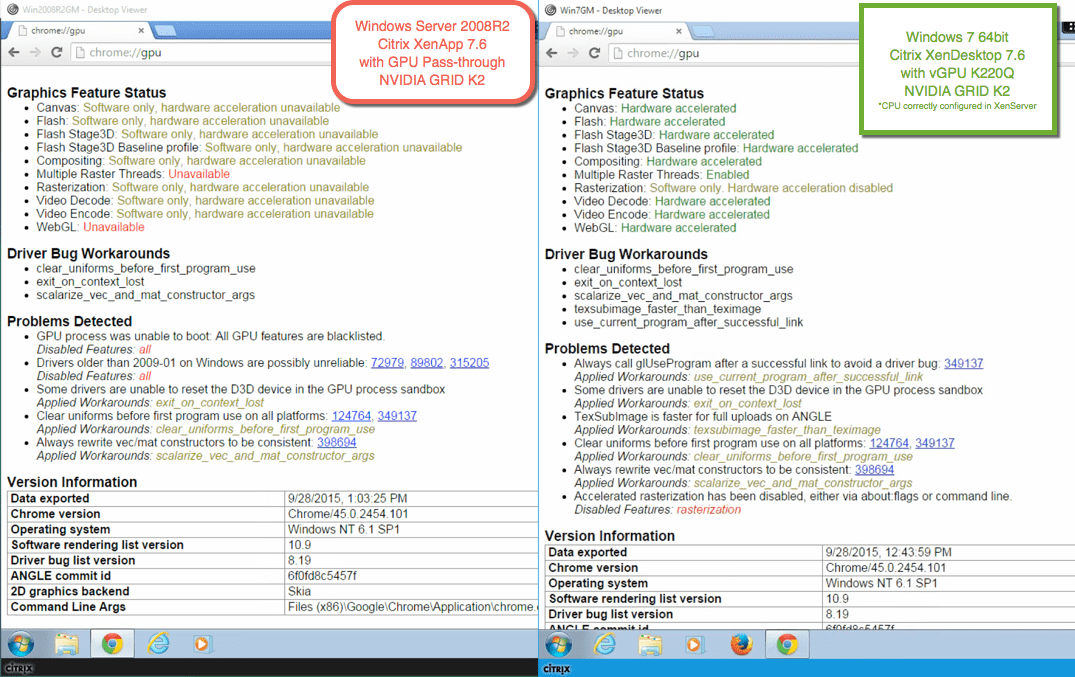
Open Google Chrome and type in chrome://gpu and then you will see if your RDS/XenApp with a GPU is working or not.
With Google Chrome v 45 the default behaviour is now that Google choose to disabling the GPU.

browser - chrome xa 2012r2 cpu issue - graphics feature issue

Google Chrome experience with a GPU (Citrix XenDesktop vs Citrix XenApp)

browser - chrome xd vs xa gpu - 2008R2 vs Win7

above picture confirms the GPU is not enabled in Google Chrome with RDS/XenApp

interesting is that Multiple Raster Threads in Win7 with a GPU is disable… why lets find out.

This is properly because you haven’t configured the CPU correctly in the hypervisor for the virtual machine.
* hint I did on purpose so you can understand it can be complex to troubleshoot if you don’t configure your environment correctly.

browser - chrome win7 cpu issue fix
best practices with HDX 3D Pro is 4 vCPU and in XenServer 6.5 you configure it 2:2

Then Multiple Raster Threads works in Win7 after you changed the configuration of the CPU on the Win7 vm.

browser - chrome win7 cpu fix

browser - chrome win7 cpu issue fixed

below picture confirms the GPU is not enabled in Google Chrome with RDS/XenApp in Server 2012R2

browser - chrome xd vs xa gpu - 2012r2 vs win81

Now we have validated that the GPU is blacklisted in RDS/XA with a GPU, lets see if we can fix this.

Performance with a WebGL web app in Google Chrome

CPU is very high when the Google Chrome is running the WebGL application. This is because its using the CPU to do software rasterize of the GPU and this makes your user able to run a webgl application without a GPU, but wait. We actually have a GPU in our RDS/XA server now, why is this not offloading the CPU, thats because Google desided to turn off GPU and blacklist them.

browser - chrome xa 2012r2 cpu issue

Solution

  1. Edit Google Chrome link and after the chrome.exe add
    –ignore-gpu-blacklistgooglechrome
  2. Open Google Chrome and run chrome://gpu in the browser
  3. Check if Hardware acceleration is now working for all functions in Google Chrome

browser - chrome xa 2012r2 cpu issue - graphics feature

GPU hardware acceleration is now working in RDS/XA with a GPU in Google Chrome and CPU is now offloaded to the GPU as you can see in the below picture.

browser - chrome xa 2012r2 cpu issue fixed