
Citrix VDI-in-a-box 5.2

Citrix have released a new version of the VDI-in-a-box 5.2

Whats new in VDI-in-a-Box 5.2

This release provides support for new Microsoft operating systems and technologies, adds support for new hypervisor versions, and integrates VDI-in-a-Box more closely with other Citrix products. The new features and enhancements include:

  • Support for new hypervisor versions. VDI-in-a-Box now supports Microsoft Hyper-V Server 2012, XenServer 6.1, and vSphere 5.1.
  • Citrix Cloud Gateway StoreFront support. StoreFront users can access their VDI-in-a-Box desktops through StoreFront services provided by Cloud Gateway. StoreFront is a unified application and data store that allows Windows, web, SaaS and mobile applications to be aggregated and delivered to any user on any device anywhere. VDI-in-a-Box is now even more accessible on more devices through StoreFront and can be delivered alongside all your other applications. For more details, see Use StoreFront with VDI-in-a-Box.Download StoreFront from the VDI-in-a-Box download page on the Citrix web site.
  • Microsoft Lync support. The Citrix HDX RealTime Optimization Pack for Microsoft Lync offers clear, crisp, high-definition video calls in conjunction with Microsoft Lync. Users can seamlessly participate in audio-video or audio-only calls to and from other HDX RealTime users and other standards-based video desktop and conference room systems. For more details, see Optional components.
  • Image export. Published images can easily be exported for use with Citrix XenDesktop and other purposes on the hypervisor. For more details, see Manage images.
  • Licensing management through a Citrix license server. If you are already using Citrix Licensing, you now have the option to also manage VDI-in-Box licensing through your central license server. For more details, see License VDI-in-a-Box.
  • Multiple data stores. A third data store can be configured. This allows separate storage of personal vDisks (the personalized data and applications used for personal desktops), enabling you to use faster storage for this to optimize performance. For more details, seeStore data in more than one data store.
  • Windows Server 2012 virtual desktops. Support is provided for Windows Server 2012 images as virtual desktops using RDP connection only.
  • Automated desktop agent upgrade. After upgrading VDI-in-a-Box, you can update the desktop agents on your existing images with a single click. For more details, see Migrate from VDI-in-a-Box 5.0.x or 5.1.x to VDI-in-a-Box 5.2.
  • Citrix Desktop Lock. Use the Desktop Lock when users do not need to interact with the local desktop. In this access scenario, the virtual desktop effectively replaces the local one, allowing the user to interact with the virtual desktop as if it is local. This enables you to use workstations as thin clients to connect to VDI-in-a-Box. For more details, see Access VDI-in-a-Box from user devices.Download the Desktop Lock from the VDI-in-a-Box download page on the Citrix web site.

Source

Download Citrix VDI-in-a-box 5.2 here (Require MyCitrix ID)

Documentation of VDI-in-a-box 5.2 (eDocs)
Citrix Branch Repeater 6.2

Citrix have released a new version of Branch Repeater 5.7.4 (Appliance, Software, Plugins)

New enhancements in 6.2

The following enhancements are available in release 6.2.

  • Repeater, Branch Repeater, Branch Repeater VPX, and Repeater Plug-in In general, use the Branch Repeater Family User’s Guide, Release 6.0-6.2, for this release, at http://support.citrix.com/article/CTX134093.
    Additionally, a new page has been added to the GUI, Monitoring: Server Load Indicator. This page shows the appliance’s overall load, LAN packet and data rates, and input queue latency, which can be useful in determining whether the appliance is lightly or heavily loaded.
  • Repeater 310 for NetScaler SDX Repeater 310 for NetScaler SDX is a new member of the product line that supports WAN speeds of up to 310 Mbps. It shares the hardware platform of the newest Repeater 500/1000 for NetScaler SDX appliances and can be converted through a license upgrade into a Repeater 500 or 1000 for NetScaler SDX.
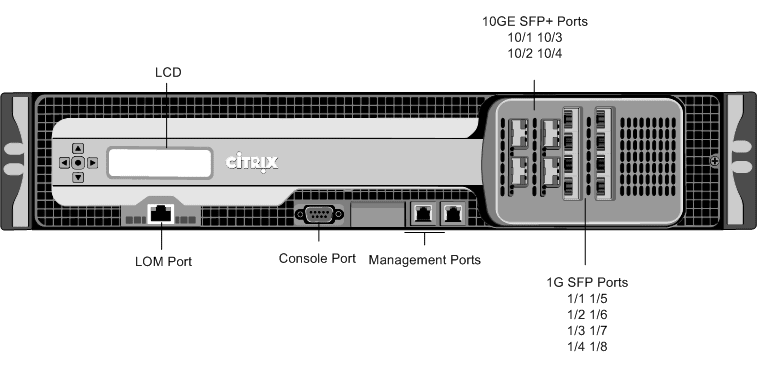
  • Hardware Changes on Repeater 310/500/1000 for NetScaler SDX The hardware platform for Repeater 310/500/1000 for NetScaler SDX has been upgraded to support network bypassing on most of the Gigabit Ethernet ports. This changes the front panel of the appliances, as shown below. Other than changes on the front-panel Ethernet ports, the appliance remains the same.
  • Branch Repeater now supports the none encryption level when configured on XenApp or XenDesktop.
  • Hardware Bypassing on Older Units
    1. All Repeater 1500/2000 for NetScaler SDX appliances include network bypassing hardware.
    2. Only Repeater 310/500/1000 for NetScaler SDX appliances that are shipped from the factory with release 6.2 include network bypassing hardware.
  • Enabling WCCP SupportWCCP support on Repeater SDX is shared between the NetScaler instance and the Repeater. The NetScaler instance offloads GRE encapsulation/decapsulation from the Repeater. The NetScaler instance also performs NAT between the router and the Repeater, since the Repeater instances are on a different subnet from the router, and NAT is required to allow WCCP-L2 support. On Repeater, WCCP support is enabled as usual, with the following exceptions and limitations:
    1. The NAT address used by the router for the UDP-level WCCP control channel must be specified, along with its subnet size. For example, if the router communicates with the Repeater on address 10.11.12.13/24, the “NetScaler WCCP VIP Address” field on the Configuration: Advanced Deployments page must be set to 10.11.12.13, and the “VIP Network Prefix” field must be set to 24.
    2. Multicast WCCP is not supported.
    3. The WCCP status page does not show packet counts.
    4. The WCCP forward and return methods must match for a given router, with both being L2 or both being GRE.
    5. Load-balancing involving multiple routers will not work properly. Repeater SDX will unbalance or drop such traffic. On the NetScaler instance, contact your Citrix representative for configuration support.
  • Support for L2 forwarding within Repeater SDX, in addition to L3 routing.
  • Traffic shaping is now supported on Repeater SDX A single traffic-shaping engine handles traffic shaping for all the Repeater instances. This traffic shaper performs the same tasks as in other Repeater appliances, and is configured in the same way, but operates in the sending direction only.
  • Citrix Branch Repeater with Windows Server Previously, Citrix Branch Repeater with Windows Server (CBRwWS) was not supported on release 6.x. With Release 6.2, CBRwWS has the same feature set as other Citrix appliances.
    See the Citrix Branch Repeater with Windows Server User’s Guide, Release 2.0-3.0, at http://kb.citrite.net/article/CTX126635 for installation instructions and other platform-specific information.
    See the Branch Repeater Family User’s Guide, Release 6.0-6.1, at http://support.citrix.com/article/CTX134093, for the acceleration features of this release.
  • Group mode is no longer supported for CBRwWS appliances.

Supported Branch Repeater VPX Configurations

Release 6.2 is supported on Branch Repeater VPX running on XenServer, VMware vSphere, and Microsoft-Hyper-V hypervisors. See the following table for the versions of hypervisor that are supported.

Table 1-4. Hypervisors compatible with Branch Repeater VPX

Citrix XenServer XenServer 6.02/Hotfix 602E007,
XenServer 5.6.0 (but not 5.6 FP1 or 5.6 SP2), XenServer 5.5
VMware Vsphere ESXi 5.0, ESX/ESXi 4.1
Microsoft Hyper-V Hyper-V under Windows 2008 R2 SP1

Source

Download Citrix Branch Repeater 6.2 (appliance, software and plug-in components) here
(Require MyCitrix ID)

Citrix VDI-in-a-Box 5.1.1

Citrix have released a hotfix 1 for of the simple VDI solution – Citrix VDI-in-a-box 5.1

Lets go through whats new and why you should update your existing VDI-in-a-box solution or why its time to look at the product.

Important: This hotfix is for Citrix VDI-in-a-Box 5.1. Do not apply it to earlier versions. For hotfixes for earlier releases, see Hotfixes for VDI-in-a-Box 5.0, Hotfixes for Kaviza VDI-in-a-box 4.1, and Hotfixes for Kaviza VDI-in-a-box 4.0.

Caution! Once installed, this hotfix cannot be rolled back.

New Fixes in This Release

  1. A personal desktop cannot be restored on a new server with a restored personal disk if its host server is shutdown or missing.

    [From HF_ VDI_inabox_5.1.1] [#330421]

  2. Users’ personal desktop will be destroyed if the base image’s patch update is rolled back.

    [From HF_ VDI_inabox_5.1.1] [#331883]

  3. The Session tab intermittently shows the incorrect IP address for the user device.

    [From HF_ VDI_inabox_5.1.1] [#328491]

  4. Restarting personal desktops with a logged-on user, with pending base image refresh, may destroy the desktop.

    [From HF_ VDI_inabox_5.1.1] [#328192]

  5. You cannot establish an HDX-based connection to a draft image in a workgroup immediately after Desktop Agent installation. To work around this issue, restart the draft image from the Image page.

    [From HF_ VDI_inabox_5.1.1] [#325666]

  6. The desktop agent uninstall process fails when run manually.

    [From HF_ VDI_inabox_5.1.1] [#315778]

  7. A server upgraded from 5.0.2 to 5.1 has a status of “broken” if the firewall on the Hyper-V server blocks SMB ports (for file and printer sharing).

    [From HF_ VDI_inabox_5.1.1] [#328040]

  8. Personal desktops configured to use Fast Refresh do not save the user’s profile.

    [From HF_ VDI_inabox_5.1.1] [#330361, #330417]

  9. Users may experience delays of 40 seconds or longer while longing on to their virtual desktops.

    [From HF_ VDI_inabox_5.1.1] [#330454]

  10. The personal desktop service and files are not uninstalled when the desktop agent is uninstalled from the virtual machine.

    [From HF_ VDI_inabox_5.1.1] [#331322]

  11. The error “SSL Certificate for vdiHVConnector failed to install” appears during installation of VDI-in-a-Box for Hyper-V due to a Windows issue documented in the Microsoft Support article Default permissions for the MachineKeys folders.

    [From HF_ VDI_inabox_5.1.1] [#328174]


Source

Download Citrix VDI-in-a-box 5.1 hotfix 1 here
or download the full appliance with 5.1.1 integrated (Require MyCitrix ID)

Citrix Branch Repeater 6.1 – update

Update 5.09.2012

Statement from Citrix: XenServer 6.x isn’t supported with Citrix Branch Repeater 6.1 and it dosent work. 

Vmware vSphere 5.x is neither supported with Citrix Branch Repeater 6.x

Citrix have released a new version of Branch Repeater 6.1. This is a release many have been waiting for because all customers that are using a Microsoft Hyper-V environment havent been cable to use a VPX version of Branch Repeater for Hyper-V, i can with gladly inform you that now there is now available a Branch Repeater 6.1 VPX for Hyper-V Wuhuuu =o). Lets dig in whats new.

Overview

Release 6.1.0 is the software release for the Citrix Branch Repeater. This software release contains bug fixes and some enhancements. This software release is compatible with partner appliances running previous Branch Repeater releases 5.0 and later, and can be used in a mixed environment that includes units running these older releases.

Software Release Highlights in 6.1.0

In addition to the bug fixes, this software release includes the following enhancements:

  • Signed SMB2 support with Kerberos (supports NTLMv2)
  • Encrypted MAPI (with multi domain Support
  • Support for WCCP L2 with NSLB on all platforms (SDX and general BR appliances)
  • 6.1 Repeater Acceleration Plug-In
  • WCCP Mask enhancements to support low end routers
  • ShowTechSupport – Diagnostic Data Collections – Some UI enhancements
  • Branch Repeater VPX on Hyper-V
  • Customer Bug Fixes

Enhancements

  • Repeater VPX is now supported on Microsoft’s Hyper-V hypervisor running under 64-bit Windows 2008 R2 SP1, in addition to XenServer and VMWare vSphere. The features and specifications of Repeater VPX under Hyper-V are the same as those under the other hypervisors.
  • The Windows file system (CIFS) and Outlook/Exchange protocol (MAPI) are now supported with NTLM 2 and Kerberos encryption, allowing traffic on Windows domains running with the default security settings to be accelerated. Previously, only NTLM 1 encryption was supported, and NTLM 1 is not enabled by default in Windows domains. These features are available automatically whenever the appliances have joined a Windows domain and have designated a Kerberos delegate user.
  • The Windows file system (CIFS) and Outlook/Exchange protocol (MAPI) now support encrypted traffic involving multiple domains, such as when the client is a member of example1.com and the server is a member of example2.com, provided that the appliance, the client, and the server are all members of domains that have established mutual trust. This feature is available automatically when the appliance has joined one of the mutually trusting domains.
  • The Repeater Plug-in is now supported in release 6.1. Previously, it was supported only in release 5.x. New features include enhanced CIFS and MAPI support, matching those of the appliances, when appropriate security credentials are installed on the Plug-in.
  • To reduce the resources used on routers supporting the appliance in WCCP mode, the WCCP “MASK” option now uses a single-bit mask. The previous multibit mask could reduce performance on routers and smart switches with limited resources. This behavior is automatic

Bug Fixes

The following issues have been fixed in this release.

  • Issue ID 0174522: The WCCP protocol allows the use of a 1-to-7 bit mask to distribute the load across web caches, which provides a maximum of 128 maskelement values. The larger the number of values, the more TCAM resources the mask consumes on the router, so the mask should have only as many bits as necessary. In releases earlier than 6.1, Branch Repeater uses a hard-coded mask value of 0x1741, which translates to 64 mask element values.Branch Repeater now uses a 1-bit mask, which requires minimal TCAM resources on the router.
  • Issue ID 0272712: Idle FTP and VoIP control connections no longer time out while data is being transmitted on the associated data connections.
  • Issue ID 0303844: In some cases, when Cached Mode is disabled, users are unable to open or download file attachments. It displays an error message of file corruption.
  • Issue ID 0313614: Extremely short packets with bad IP checksums sometimes causes the Repeater to restart.
  • Issue ID 0318061: If the driver for the hardware watchdog in the Intel South Bridge chip set loads before the IPMI watchdog driver, the operating system reports a watchdog resource conflict that prevents the IPMI watchdog from loading.

Compatibility

The Repeater Plug-In is supported in release 6.1 but not in release 6.0. However, the release 5.5.x and 5.7.x versions of the Repeater Plug-in are compatible with release 6.0 Appliances, with one exception: Systems using XenApp 6.5 or XenDesktop 5.0 with Multiport/Multi-Stream ICA enabled require Release 5.7.2 of the Repeater Plug-in.

The Plug-in is supported by Citrix Receiver 1.2 and up, and can be distributed and managed by Citrix Receiver.

Branch Repeater with Windows Server is not included in release 6.1. However, appliances running release 6.1 interoperate with Branch Repeater with Windows Server appliances running earlier releases.

Supported Products

Appliance Type Supported?
Repeater for NetScaler SDX Models 500, 1000, 1500, and 2000 Yes
Branch Repeater VPX (all models) Yes
Branch Repeater Models 100, 200, and 300 Yes
Branch Repeater with Windows Server Models 100, 200 and 300 No
Repeater Plug-in Yes
Repeater 8000 Series (Newer Units): Units that list “SM85 Yes
Series 3”or “SM88 Series 3” on the “System Hardware” line
of the “System Status” page.
Repeater 8000 Series (Older Units): Units that list “SM85 No
Series 2”or “SM88 Series 2” on the “System Hardware” line
Older Models No

Supported Branch Repeater VPX Configurations

Release 6.1 is supported on Branch Repeater VPX running on both XenServer (5.5 and 5.6, but not 5.6 FP1) and VMware vSphere ESX/ESXi 4.1 hypervisors. ***

RAM and vCPU requirements have increased with this release. See the following tables.

Type vCPUs RAM Disk Max WAN Speed Max Accel. Conn.  Max Repeater Plug-ins
2 GB production 2 2 GB 100 GB 2 mbps 1000 50
4 GB production 2 4 GB 250 GB 10 mbps 10000 250
4 GB production* 2 4 GB 250 GB 45 mbps 15000 400
8 GB production* 4 8 GB 500 GB 45 mbps 25000 500

* With 45mbps license

Table 1-3. Other configurations (not for production networks).

Type vCPUs RAM Disk Max WAN Speed Max Accel. Conn.  Max Repeater Plug-ins
VPX Express 2 1 GB 60 GB 512 Kbps 10 5

Licensing, Initial Installation, and Upgrading

Licensing

Release 6.1 supports both remote license servers and locally installed licenses. If you upgrade an existing system with a local license, it continues to work.

Upgrading Existing Installations

Note:  If you are using a standard evaluation license, you cannot upgrade to software versions that are newer than your license.

Branch Repeater VPX
Since the resource requirements have changed, it is best to install a new 6.1.0 virtual machine rather than updating an existing one. Acquire the virtual machine from MyCitrix and follow the instructions in the User’s Guide.

Repeater and Branch Repeater
Acquire the software from MyCitrix.
Installing the Update

Note:  If you are upgrading from a pre-5.0 release (such as release 4.3), you must update to release 5.x first, then release 6.x. Also, if you are upgrading from a pre-5.0 release, acceleration will not take place until you install the new license from Citrix.

From the browser based user interface (http://appliance_ip_address), go to the “System Tools: Update Software” link. In the “Upgrade System Software” table, use the Browse button to select the patch file (the file you downloaded with ftp), and then press the Upload Patch button.

Source

Download – Branch Repeater VPX for XenServer, VMware vSphere and Hyper-V Software Rel 6.1.0 here
Require MyCitrix Account

Download – Branch Repeater Appliance Software Release 6.1.0 here
Require MyCitrix Account

Download – Repeater Appliance Software Release 6.1.0 here
Require MyCitrix Account

Download – Repeater Plug-in 6.1.0 (Citrix Acceleration Plug-in) here
Require MyCitrix Account

Citrix VDI-in-a-Box 5.1

Citrix have released a new version of VDI-in-a-box 5.1. Summary the new version have all the goodies from XD5.6 Feature Pack 1 and now you can customize names for your machines WUHU for that.. its about time, so a lot of customers are going to be happy about that feature and no more messy names 😉 + more.. Read below about the new features.

I did a comparison on XenDesktop vs VDI-in-a-box and i will publish the presentation from E2E Vienna May 2012 this week and next i will do an update to the new version of XD&VDI-in-a-box so all data is up-2-date.

enjoy /Poppelgaard


About Citrix VDI-in-a-Box 5.1

VDI-in-a-Box is a single virtual appliance that provides all of the functionality needed to create, provision, manage, and load balance virtual desktops. VDI-in-a-Box has a built-in connection broker, load balancer, user manager, and desktop provisioning server. It does not require separate shared storage, high-speed interconnects, or multiple management servers. The appliance runs on commodity servers running a hypervisor such as Citrix XenServer, Microsoft Hyper-V, or VMware ESXi.

Citrix Receiver helps provide VDI-in-a-Box desktop users with secure connections to a high-definition user experience. Powered by Citrix HDX technologies, VDI-in-a-Box provides a superior user experience with Flash multimedia and applications, 3D graphics, webcams, audio, and branch office delivery. Although the desktops run on remote servers, the user experience is equivalent to that of a local Windows desktop. From the user’s perspective, logging on to a virtual desktop is the same as logging on to a local desktop.

New features

This release includes several new features and enhancements to Citrix VDI-in-a-Box.

Personal desktops

You can now create personalized desktops from a common published Windows 7 image by checking a box. Users can install applications of their choice, set their profiles, and store user data. Administrators can update, manage, backup, and restore these personalized desktops. When the published image is updated, the base image of all the personal desktops are automatically updated with the administrator’s changes and yet the user installed applications, profiles, and data remain intact.

Citrix recommends using a profile management application with the personal desktop feature to backup user profile data. Citrix Profile management is included with VDI-in-a-Box.

Automated Desktop Agent

The VDI-in-a-Box Desktop Agent resides on each desktop created from the published image. vdiManager communicates with the desktop through the agent. The new Desktop Agent process installs the agent on the draft image automatically.

The automated installation process is part of the process for creating a first draft image.

Active Directory failover

This release introduces Active Directory failover. VDI-in-a-Box automatically starts to use another Active Directory server if the primary server fails. Administrators can specify two or more Active Directory servers in a prioritized list. VDI-in-a-Box uses the primary Active Directory until it fails and then defaults to the next Active Directory on the list and continues in this fashion. VDI-in-a-Box periodically checks to see if failed Active Directory servers have recovered and automatically reverts back to the highest priority Active Directory server.

Note: To ensure uninterrupted desktop provisioning, each Active Directory in the list should contain identical data and be synchronized. VDI-in-a-Box does not provide a mechanism to ensure synchronized operations among the Active Directory servers.

Ability to specify virtual desktop names

This release allows administrators to specify the complete name of their virtual machines and computers. This allows administrators to track your virtual machines on your hypervisors and the associated computers on the Active Directory server.

The pattern is as follows:

<prefix><suffix>

The prefix accepts letters, numbers, and hyphens (-). The suffix only accepts numbers. One digit is required and up to four can be used. Use of leading zeroes is recommended.

Grid-wide virtual IP address

This feature allows user devices to access the grid through a single virtual IP address hosted by one of the servers in the grid. All user connection requests are sent to this host server. If the host server fails, another server in the grid becomes the host and fields the connection requests.

The grid-wide virtual IP address feature provides end-to-end high availability without requiring a load balancer between the user and the grid of servers. This feature works with any user device.

Citrix HDX 5.6 Feature Pack 1 support

This release includes Citrix HDX 5.6 Feature Pack 1.

Multiple virtual CPU

Some applications either require or perform much better with multiple CPUs. This release allows a virtual desktop to be specified to run on multiple virtual CPUs. Use this option with care as it does require more physical CPU resources and can impact the number of desktops that can run on a server.

Separate user and computer domains

VDI-in-a-Box enables the flexibility to place users and desktops in different Windows domains. This is useful when security regulations require a more stringent relationship between users and their desktops.

Dual data stores

The dual data stores feature allows you to store images and personal desktops on a data store separate from that used by pooled desktops. This flexibility can be used in many ways, for example, storing the pooled desktops in a solid-state drive datastore for faster performance. Since pooled desktops require less space, better performance can be achieved by adding only small amounts of solid-state drives to a server.

Remote Desktop Gateway

Remote access to VDI-in-a-Box desktops is available through the Remote Desktop Gateway. The Remote Desktop Gateway must be set up in the demilitarized zone. It should be in the same domain as the virtual desktops to which it provides remote access. The vdiManager must be configured with the Remote Desktop Gateway’s IP address.

Network Time Protocol

VDI-in-a-Box allows the use of a Network Time Protocol server as the master clock with which all the vdiManagers in the grid synchronize. This ensures that cross-server logs are consistent with respect to time.

Optimization for Google Earth

Desktops provisioned from VDI-in-a-Box are now able to provide sharper image quality for Google Earth when the Google Earth Optimization Pack is installed.

To install the Google Earth Optimization Pack, download the optimization pack from https://www.citrix.com/English/ss/downloads/results.asp?productID=2316437 to the draft image, then copy D3d9.dll to the folder containing Googleear.exe.

For additional information, see http://support.citrix.com/article/CTX131167

Note: Images running the optimization pack require at least two virtual CPUs.

Source

Download here (require MyCitrix account)