
Mozilla Firefox 40.x Blocks GPU Acceleration for WebGL, Direct2D, DirectWrite with Citrix XenApp on Windows 2008R2/2012/2012R2
Mozilla Firefox 40.x Blocks GPU Acceleration for WebGL, Direct2D, DirectWrite with Citrix XenApp on Windows 2008R2/2012/2012R2
One of the great things about adding a GPU in a Citrix XenApp environment is that you can allow rich graphics and offload CPU and run your DirectX, OpenGL applications on a XenApp server. In latest version of Mozilla Firefox WebGL, Direct2D, DirectWrite this have been disabled, so you can’t open webpages that uses these graphics in a Citrix XenApp session.
Symptoms or Error
If you open Mozilla Firefox 40.x and try to open a webGL website like http://madebyevan.com/webgl-water
this will not load anymore cause WebGL is default now disabled in Mozilla Firefox. Mozilla Firefox 40.x blocks GPU acceleration for WebGL, Direct2D, DirectWrite in remote sessions on Windows Server operating systems.

To determine what content Firefox is blocking, run Firefox in your XenApp remote session and enter the address about:support into the browser address bar. In the section labelled “Graphics” you will see the following content disabled (as of Firefox version 40.0.3):
Direct2D Enabled Blocked for your graphics card because of unresolved driver issues.
DirectWrite Enabled false (6.3.9600.17999)
WebGL Renderer Blocked for your graphics card because of unresolved driver issues.

Solution
The text “Blocked for your graphics card” is misleading as, in this case, it is not the specific graphics card but general Windows Server operating system remote sessions that are blocked. Mozilla’s published advice on how to override the graphics driver blocks also applies to XenApp sessions on workstation operating system (see bottom of this Mozilla Wiki – Blocklisting/Blocked Graphics Drivers).
Enable WebGL in Mozilla Firefox
In Mozilla Firefox entering the address about:config into the address bar and setting webgl.force-enabled=true will enable WebGL for XenApp on operating system (Server 2008R2/2012/2012R2)

You can double click on it and then it will become enabled. (with the value=true) and this is user set.
These settings can be change with a policy or with profile management such as RES Workspace Manager or others.

Now you can open the WebGL demo and the graphics will work

Enable DirectDraw2D
In Mozilla Firefox entering the address about:config into the address bar and setting gfx.direct2d.force-enabled=true will enable WebGL for XenApp on operating system (Server 2008R2/2012/2012R2)

You can double click on it and then it will become enabled. (with the value=true) and this is user set.
These settings can be change with a policy or with profile management such as RES Workspace Manager or others.
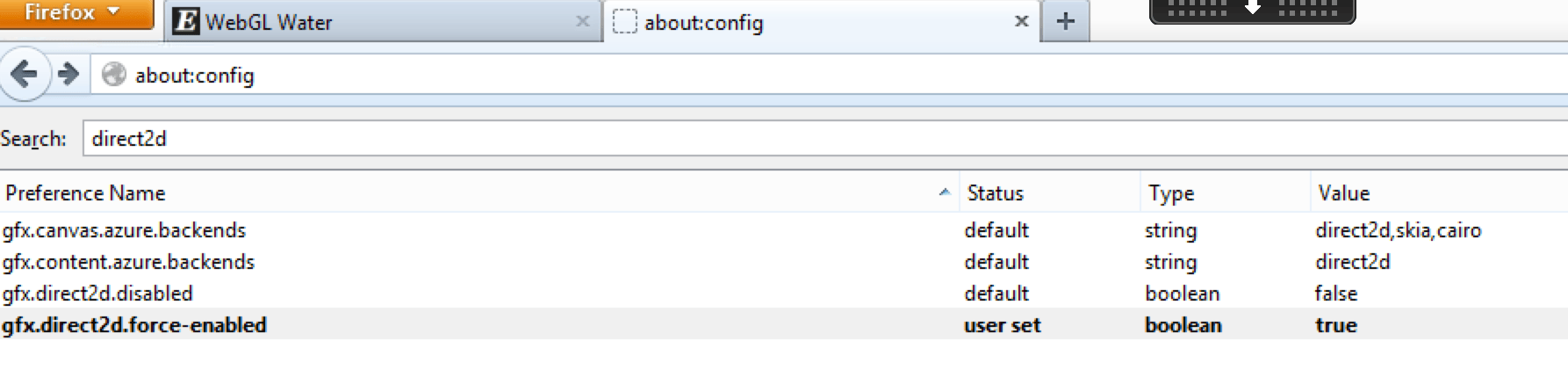
Enable DirectDraw2D
In Mozilla Firefox entering the address about:config into the address bar and setting gfx.font_rendering.directwrite.enabled=true will enable DirectWrite for XenApp on operating system (Server 2008R2/2012/2012R2)

You can double click on it and then it will become enabled. (with the value=true) and this is user set.
These settings can be change with a policy or with profile management such as RES Workspace Manager or others.
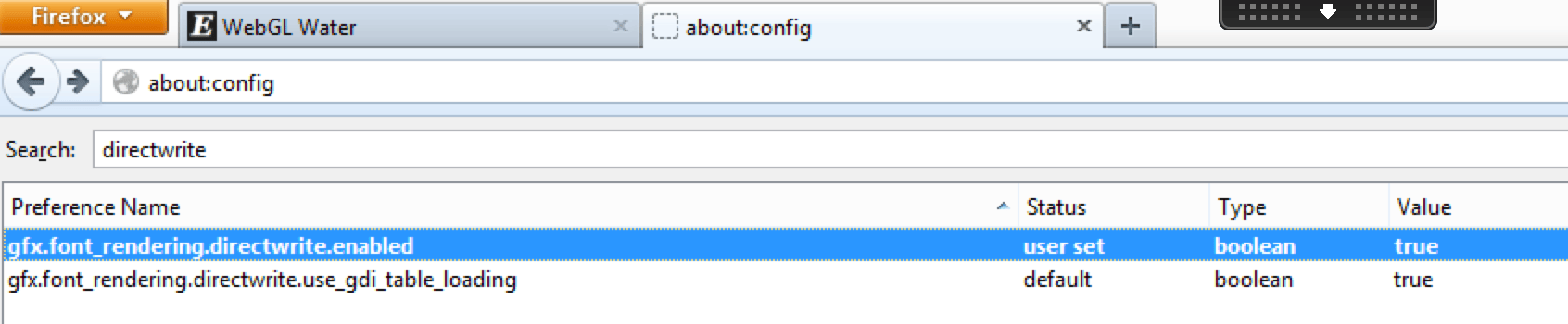
Users should be aware and note the caveats and warnings that Mozilla advises if taking this route to above settings for DirectWrite, Direct2D, WebGL
This issue only affects server operating system (example – Win 2012 R2 and Win 2008 R2) and XenApp.
How to force-enable blocked graphics features
If you would like to forcibly enable a graphics feature that is blocked on your system, follow these instructions. Warning: do this at your own risk. There usually are good reasons why features are blocked.
To force-enable WebGL, go to about:config and set webgl.force-enabled=true.
To force-enable WebGL anti-aliasing, go to about:config and set webgl.msaa-force=true.
To force-enable Layers Acceleration, go to about:config and set layers.acceleration.force-enabled=true.
On Windows Vista and Windows 7, to force-enable Direct2D Content Acceleration, go to about:config and set gfx.direct2d.force-enabled=true.
On Android, to force-enable StageFright software decoding, go to about:config and set stagefright.force-enabled=true.
On Windows, you can also spoof your graphics system information to help debug driver blacklisting issues (see bug 604771):
- Create spoofed-firefox.bat in the installation folder (e.g. C:\Program Files (x86)\Mozilla Firefox)
- Set the new values of spoofed variables ending with a command to launch Firefox:
SET MOZ_GFX_SPOOF_WINDOWS_VERSION=60001
SET MOZ_GFX_SPOOF_VENDOR_ID=0x8086
SET MOZ_GFX_SPOOF_DEVICE_ID=0x0046
SET MOZ_GFX_SPOOF_DRIVER_VERSION=8.15.10.2302
“C:\Program Files (x86)\Mozilla Firefox\firefox.exe” -p -no-remote - Double-click spoofed-firefox.bat and create a profile if required
- Click the Firefox button, then select Help, finally Troubleshooting Information and check the Graphics section.
If force-enabling a feature doesn’t work, that probably means that your hardware doesn’t support it. For example, layers acceleration currently requires support for 4Kx4K textures, which rules out some graphics cards, like the Intel G31/G33.
Source
http://support.citrix.com/article/CTX202065 (credits to Rachel Berry for writing this CTX article)
Another great blogpost to read about this subject is my friend / CTP fellow Barry Schiffer http://www.barryschiffer.com/citrix-hdx-3d-pro-and-nvidia-grid-browser-experience/ He was the guy who wrote a great blogpost with some very interesting results on performance tuning Mozilla Firefox in a XenApp/XenDesktop session.