Google Chrome 45.x Blocks GPU Acceleration for WebGL, Direct2D, DirectWrite with Citrix XenApp on Windows 2008R2/2012/2012R2

Solution: Google Chrome 45.x Blocks GPU Acceleration for WebGL, Direct2D, DirectWrite with Citrix XenApp on Windows 2008R2/2012/2012R2

Google Chrome v. 45  have changed their behaviour of their web browser, so they are blacklisting GPUs, which means hardware acceleration is disabled by default in a Remote session this behaviour is seen in Microsoft RDS with RemoteFX, Citrix XenApp 6.5 -> 7.6 with vGPU/GPU pass-through. Behaviour is also seen on Linux environments with Google Chrome.

Issue highlightet in a Citrix XenApp 7.6 (2008R2/2012/2012R2) with GPU

Open Google Chrome and type in chrome://gpu and then you will see if your RDS/XenApp with a GPU is working or not.
With Google Chrome v 45 the default behaviour is now that Google choose to disabling the GPU.

browser - chrome xa 2012r2 cpu issue - graphics feature issue

Google Chrome experience with a GPU (Citrix XenDesktop vs Citrix XenApp)

browser - chrome xd vs xa gpu - 2008R2 vs Win7

above picture confirms the GPU is not enabled in Google Chrome with RDS/XenApp

interesting is that Multiple Raster Threads in Win7 with a GPU is disable… why lets find out.

This is properly because you haven’t configured the CPU correctly in the hypervisor for the virtual machine.
* hint I did on purpose so you can understand it can be complex to troubleshoot if you don’t configure your environment correctly.

browser - chrome win7 cpu issue fix
best practices with HDX 3D Pro is 4 vCPU and in XenServer 6.5 you configure it 2:2

Then Multiple Raster Threads works in Win7 after you changed the configuration of the CPU on the Win7 vm.

browser - chrome win7 cpu fix

browser - chrome win7 cpu issue fixed

below picture confirms the GPU is not enabled in Google Chrome with RDS/XenApp in Server 2012R2

browser - chrome xd vs xa gpu - 2012r2 vs win81

Now we have validated that the GPU is blacklisted in RDS/XA with a GPU, lets see if we can fix this.

Performance with a WebGL web app in Google Chrome

CPU is very high when the Google Chrome is running the WebGL application. This is because its using the CPU to do software rasterize of the GPU and this makes your user able to run a webgl application without a GPU, but wait. We actually have a GPU in our RDS/XA server now, why is this not offloading the CPU, thats because Google desided to turn off GPU and blacklist them.

browser - chrome xa 2012r2 cpu issue

Solution

  1. Edit Google Chrome link and after the chrome.exe add
    –ignore-gpu-blacklistgooglechrome
  2. Open Google Chrome and run chrome://gpu in the browser
  3. Check if Hardware acceleration is now working for all functions in Google Chrome

browser - chrome xa 2012r2 cpu issue - graphics feature

GPU hardware acceleration is now working in RDS/XA with a GPU in Google Chrome and CPU is now offloaded to the GPU as you can see in the below picture.

browser - chrome xa 2012r2 cpu issue fixed


Mozilla Firefox 40.x Blocks GPU Acceleration for WebGL, Direct2D, DirectWrite with Citrix XenApp on Windows 2008R2/2012/2012R2

Mozilla Firefox 40.x Blocks GPU Acceleration for WebGL, Direct2D, DirectWrite with Citrix XenApp on Windows 2008R2/2012/2012R2

One of the great things about adding a GPU in a Citrix XenApp environment is that you can allow rich graphics and offload CPU and run your DirectX, OpenGL  applications on a XenApp server. In latest version of Mozilla Firefox WebGL, Direct2D, DirectWrite this have been disabled, so you can’t open webpages that uses these graphics in a Citrix XenApp session.

Symptoms or Error

If you open Mozilla Firefox 40.x and try to open a webGL website like http://madebyevan.com/webgl-water
this will not load anymore cause WebGL is default now disabled in Mozilla Firefox. Mozilla Firefox 40.x  blocks GPU acceleration for WebGL, Direct2D, DirectWrite in remote sessions on Windows Server operating systems.

2015-09-15_1553

To determine what content Firefox is blocking, run Firefox in your XenApp remote session and enter the address about:support into the browser address bar. In the section labelled “Graphics” you will see the following content disabled (as of Firefox version 40.0.3):

Direct2D Enabled             Blocked for your graphics card because of unresolved driver issues.
DirectWrite Enabled         false (6.3.9600.17999)
WebGL Renderer             Blocked for your graphics card because of unresolved driver issues.

2015-09-15_1555

Solution

The text “Blocked for your graphics card” is misleading as, in this case, it is not the specific graphics card but general Windows Server operating system remote sessions that are blocked. Mozilla’s published advice on how to override the graphics driver blocks also applies to XenApp sessions on workstation operating system (see bottom of this Mozilla Wiki – Blocklisting/Blocked Graphics Drivers).

Enable WebGL in Mozilla Firefox

In Mozilla Firefox entering the address about:config into the address bar and setting webgl.force-enabled=true will enable WebGL for XenApp on operating system (Server 2008R2/2012/2012R2)

webgl


You can double click on it and then it will become enabled. (with the value=true) and this is user set.
These settings can be change with a policy or with profile management such as RES Workspace Manager or others.

webgl-working

Now you can open the WebGL demo and the graphics will work

2015-09-15_1557

Enable DirectDraw2D

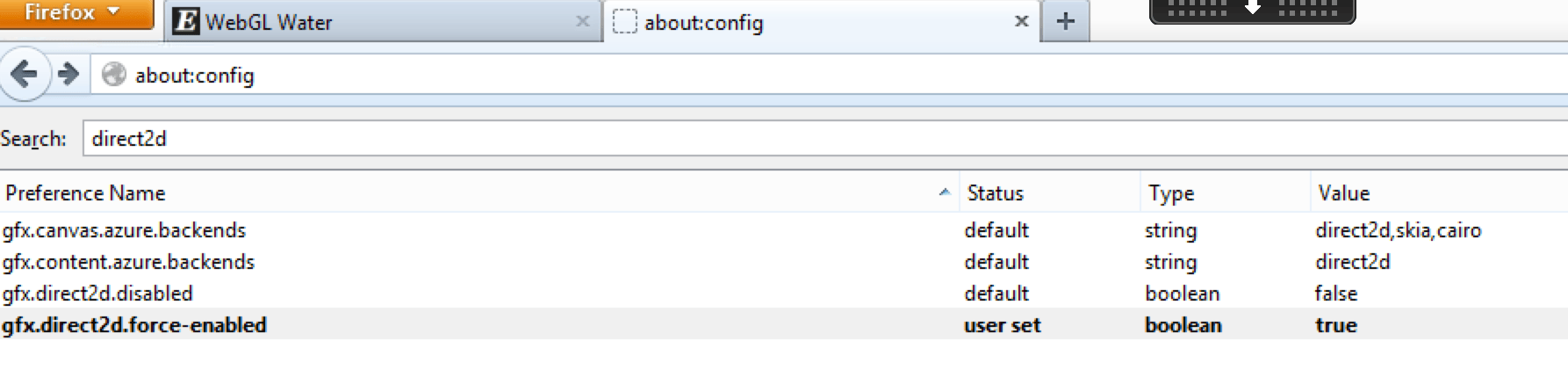
In Mozilla Firefox entering the address about:config into the address bar and setting gfx.direct2d.force-enabled=true will enable WebGL for XenApp on operating system (Server 2008R2/2012/2012R2)

direct2d

You can double click on it and then it will become enabled. (with the value=true) and this is user set.
These settings can be change with a policy or with profile management such as RES Workspace Manager or others.

direct2d-working

Enable DirectDraw2D

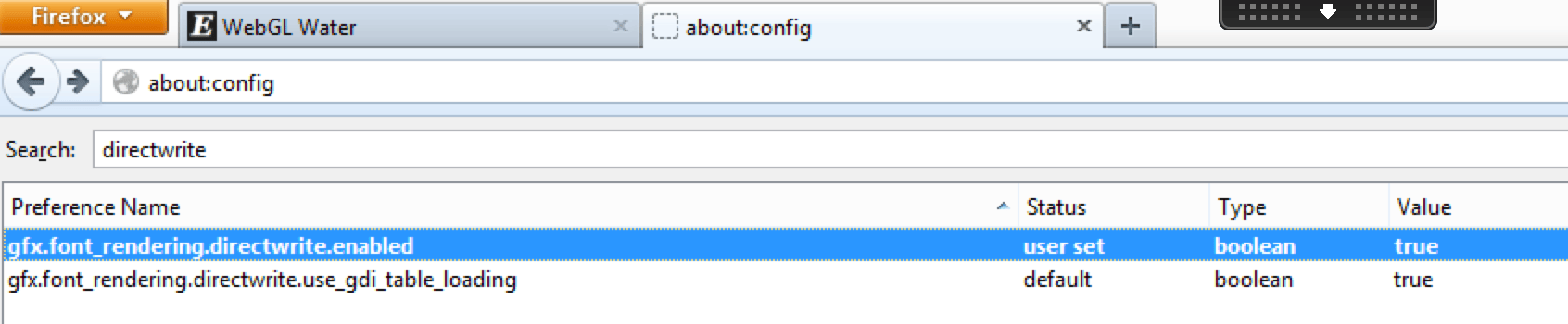
In Mozilla Firefox entering the address about:config into the address bar and setting gfx.font_rendering.directwrite.enabled=true will enable DirectWrite for XenApp on operating system (Server 2008R2/2012/2012R2)

directwrite

You can double click on it and then it will become enabled. (with the value=true) and this is user set.
These settings can be change with a policy or with profile management such as RES Workspace Manager or others.

directwrite-working

Users should be aware and note the caveats and warnings that Mozilla advises if taking this route to above settings for DirectWrite, Direct2D, WebGL

This issue only affects server operating system (example – Win 2012 R2 and Win 2008 R2) and XenApp.

How to force-enable blocked graphics features

If you would like to forcibly enable a graphics feature that is blocked on your system, follow these instructions. Warning: do this at your own risk. There usually are good reasons why features are blocked.

To force-enable WebGL, go to about:config and set webgl.force-enabled=true.

To force-enable WebGL anti-aliasing, go to about:config and set webgl.msaa-force=true.

To force-enable Layers Acceleration, go to about:config and set layers.acceleration.force-enabled=true.

On Windows Vista and Windows 7, to force-enable Direct2D Content Acceleration, go to about:config and set gfx.direct2d.force-enabled=true.

On Android, to force-enable StageFright software decoding, go to about:config and set stagefright.force-enabled=true.

On Windows, you can also spoof your graphics system information to help debug driver blacklisting issues (see bug 604771):

  1. Create spoofed-firefox.bat in the installation folder (e.g. C:\Program Files (x86)\Mozilla Firefox)
  2. Set the new values of spoofed variables ending with a command to launch Firefox:
    SET MOZ_GFX_SPOOF_WINDOWS_VERSION=60001
    SET MOZ_GFX_SPOOF_VENDOR_ID=0x8086
    SET MOZ_GFX_SPOOF_DEVICE_ID=0x0046
    SET MOZ_GFX_SPOOF_DRIVER_VERSION=8.15.10.2302
    “C:\Program Files (x86)\Mozilla Firefox\firefox.exe” -p -no-remote
  3. Double-click spoofed-firefox.bat and create a profile if required
  4. Click the Firefox button, then select Help, finally Troubleshooting Information and check the Graphics section.

If force-enabling a feature doesn’t work, that probably means that your hardware doesn’t support it. For example, layers acceleration currently requires support for 4Kx4K textures, which rules out some graphics cards, like the Intel G31/G33.

Source

Firefox article

http://support.citrix.com/article/CTX202065 (credits to Rachel Berry for writing this CTX article)

Another great blogpost to read about this subject is my friend / CTP fellow Barry Schiffer http://www.barryschiffer.com/citrix-hdx-3d-pro-and-nvidia-grid-browser-experience/ He was the guy who wrote a great blogpost with some very interesting results on performance tuning Mozilla Firefox in a XenApp/XenDesktop session.


Citrix XenDesktop & XenApp 7.6 Feature Pack 2

Citrix XenDesktop & XenApp 7.6 Feature Pack 2

Citrix released Feature Pack 2 for Citrix XenDesktop & Citrix XenApp.

What’s new in Feature Pack 2 for Citrix XenDesktop 7.6 and XenApp 7.6

The Feature Pack 2 release includes the following new and enhanced features.

StoreFront 3.0

StoreFront includes the following new features and enhancements.

  • Unified Receiver provides modern, centrally-managed and customizable user app selection experience across all user devices.
  • Google Chrome Support without NPAPI.
  • Delegating Authentication to XenApp and XenDesktop when there is no AD trust between sites.
  • Treat All Desktops as Applications to apply Workspace Control and group icons together.
  • Integrated Monitoring Service enables NetScaler to monitor StoreFront.
  • Extended Store Customization SDK for business logic.

Updated StoreFront management console

Support for the unified Receiver experience — StoreFront 3.0 delivers centralized customization and branding of your end users’ applications and desktop selection experience to Receiver users. Your company can customize the interface to reflect your logo, colors, and so forth. Some of the new Receiver and StoreFront features:

  • Simplified application organization — Familiar and consistent application selection experience for use.

Featured app groups. Administrator configured applications that are logically grouped and advertised to users in the applications selection experience.

Folder view of applications. Return of Web Interface functionality in StoreFront.

Favorites. Easily add or remove applications to Favorites for quick access.

  • Server-managed user experience — Application selection experience is server configured.

Change once, deploy everywhere. User application selection experience changes are made by the administrator on StoreFront server.

Consistent application selection experience for user. Any device running Receiver receives its application selection experience from the server as HTML5, providing for consistency as users move across smartphones, tablets, and desktop form factors.

Decouple the application selection experience from Receiver capabilities. Client upgrade without end user training or user experience impact; Support legacy user experience without legacy client cost.

  • Fit for purpose user experience customization options — You select the appropriate level of customization.

Updated out-of-the-box user experience. Modernized end user application selection look-and-feel.

Server-configured branding customizations. You brand with corporate logos, color, and featured application groups.

Deeper customization and branding options. CSS and script APIs available to enable deeper levels of customization.

Use the StoreFront management console to do the following Receiver related tasks:

Set Receiver for Web as the default for the store.

Create a Receiver for Web website.

Change website type.

Customize the website appearance.

See the Support for Receiver for Web article.

  • Featured app groups management — App groups are groups of applications that are related or fit in a specific category making them more easily discoverable. With Studio and the StoreFront management console you can define app groups using keywords, application names, or categories.

See the Create and manage featured apps article.

XML service-based authentication.

You can configure StoreFront to use the XenApp and XenDesktop XML Service to authenticate the user name and password credentials where a user explicitly provides a user name and password.  Use PowerShell cmdlets to enable and disable this feature. For more information, see XML service-based authentication.

Support for HDX Real-Time Optimization Pack 1.8

HDX RealTime Optimization Pack includes the following new features and enhancements.

  • Support for the Microsoft Skype for Business client in Lync UI mode, the Microsoft Lync 2013 client, and the Microsoft Lync 2010 client.
  • Support for the Lync Server 2013 Autodiscover Service.
  • Call Park and Call Pick Up in Lync 2010 client.
  • Call forwarding and simultaneous ringing controls for Lync 2010 client
  • Support for Mac.
  • Kerberos authentication.
  • Plus (+) symbol in the dial pad.
  • Support for the Microsoft Windows 10 technical preview.

For information, see HDX RealTime Optimization Pack 1.8.

Session Recording

Session Recording includes the following new features and enhancements.

  • You can specify the connection credentials to the database when installing the Session Recording Database component.
  • You can test the connectivity of database during the installation of the Session Recording Database and Session Recording Server components and test the connectivity of the Session Recording Server during the installation of Session Recording Agent component.
  • Microsoft Shared Management Objects is no longer requirement for Session Recording Database installation.
  • Citrix Experience Improvement Program (CEIP) is integrated in Session Recording. For more information, see About the Citrix Customer Experience Improvement Program.

For more information, see Session Recording – for XenApp 7.6 FP1 and FP2 only.

Linux Virtual Desktop

You can now create Linux virtual desktops based on SUSE and Red Hat distributions. Prepare your Linux virtual machines, install the new Linux VDA software on them, configure your Delivery Controller, and then use Studio to make the desktops available to users. For more information, see the following documents.

Installation guide for SUSE

Installation guide for Red Hat

Framehawk Virtual Channel

Framehawk is a new ICA virtual channel that extends Citrix HDX technologies, a set of capabilities that work together to deliver a high-definition user experience of virtual desktops and applications.

The Framehawk virtual channel optimizes the delivery of virtual desktops and applications to users on broadband wireless connections. It is ideal for mobile devices under lossy network connections. With Framehawk integrated into the industry-leading HDX technology, Citrix provides a smooth and intuitive user experience in conditions where remote workspace users previously experienced poor interactivity, such as on wireless connections with high packet loss or congestion.

For more information, see the following document.

Administrator guide

Director 7.6.300

This version of Director supports the Framehawk virtual channel. You can display HDX graphics information, which lets you monitor and troubleshoot any session that uses the channel.

Source

Download Citrix XenDesktop 7.6 Feature Pack 2 here (requires MyCitrix ID)

Download Citrix XenApp 7.6 Feature Pack 2 here (requires MyCitrix ID)

Download Citrix Storefront 3 here (requires MyCitrix ID)

Download Director 7.6.300 here

Download Session Recorder here (requires MyCitrix ID)

Download HDX Realtime Optimization Pack 1.8 here (requires MyCitrix ID)

Download Citrix Linux Virtual Desktops here (requires MyCitrix ID)

Download HDX with Framework here

FYI – Remember to update your hot fixes to latest level for Studio, GPO, VDA, download the hot fixes here


End user computing EUC Podcast Episode #1

The End User Computing Podcast (www.eucpodcast.com) is a community driven podcast for IT Professionals, and the first EUC Podcast is officially “in the bag”. Thanks to all those who hung around while the roadies tapped the mic, looked at the mic, tapped the mic again – got the manual out, realised it was in Danish written in a Manga syle, then essentially turned it off and on again.. but we got there in the end.

Continue reading

Introducing The End User Computing Podcast

Introducing The End User Computing Podcast

Over the last several years, many of us in the industry have discussed the need for community driven End User Computing podcasts focusing on virtualization topics for people designing, deploying, and using Citrix, Microsoft, VMware and surrounding†technologies. I am excited to share that this month, two new Podcasts are being launched! First, a warm congratulations to Jarian Gibson and Andy Morgan on the successful launch of their Podcast, Frontline Chatter. Here’s to many years of continued success! Next, allow me to introduce the End User Computing Podcast!

Continue reading